










Why USB Speed Matters
USB ports are like the highways of your computer — the faster they are, the smoother your data travels. Whether you’re transferring files, charging your devices, or connecting external drives, knowing which USB port is the fastest can save you time and frustration.
At Lansotech Solutions, we often see customers puzzled about why their flash drive or external SSD transfers at a snail’s pace. The culprit? They’re unknowingly plugged into an older, slower port.
Let’s dive deep into how to instantly identify the fastest USB ports on your laptop or desktop — without special tools.
Understanding USB Generations
Before you can identify the fastest USB port, it’s crucial to understand what each generation means. The evolution of USB technology has been nothing short of amazing.
USB 1.0 and 2.0: The Basics
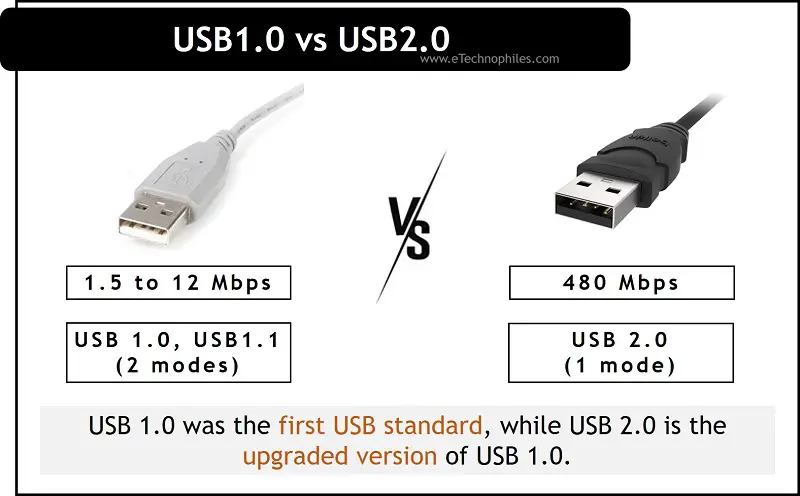
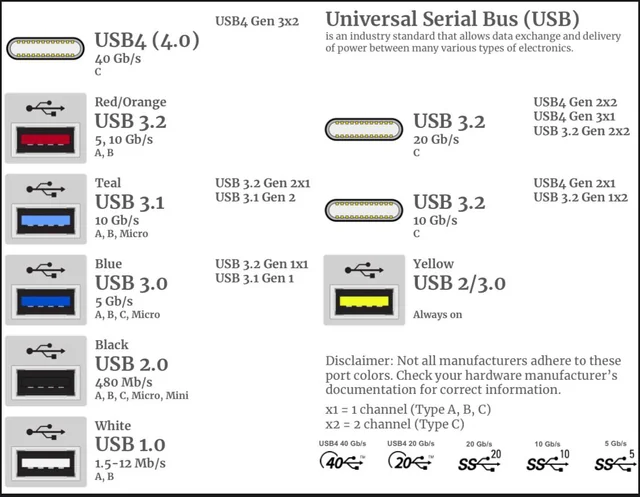
- USB 1.0 (1996): Maximum speed of 12 Mbps. Practically extinct today.
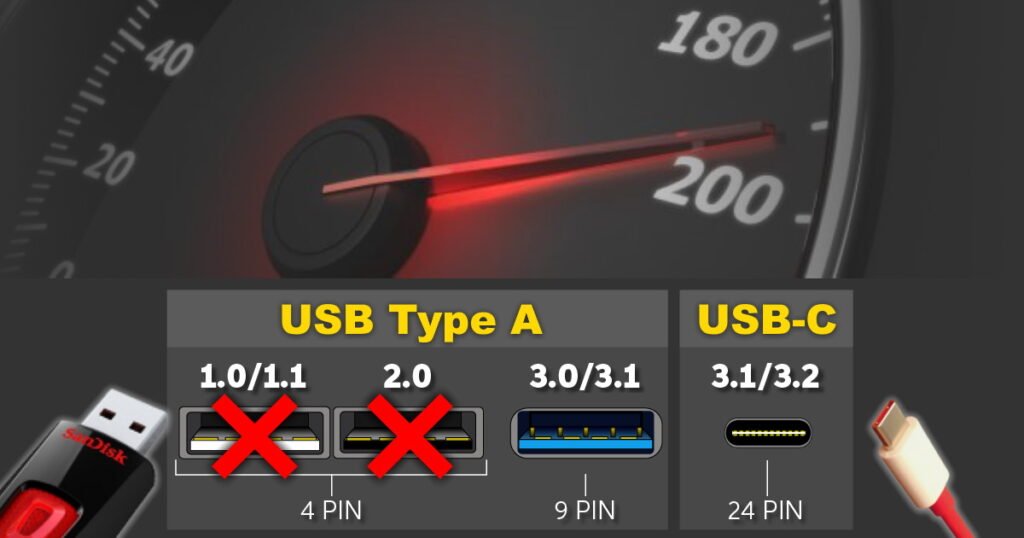
- (2000)USB 2.0 : Improved speed of 480 Mbps — still common for keyboards, mice, and printers.
- Usually found as black or white USB ports.
While adequate for small file transfers, USB 2.0 can’t handle modern high-speed storage devices efficiently.
USB 3.0 and Beyond: The Speed Revolution

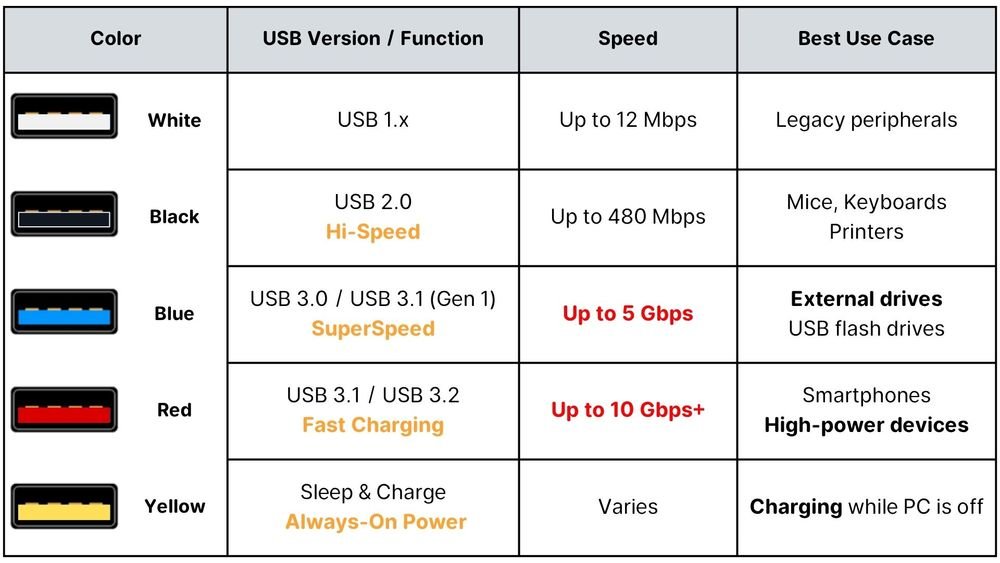
- (2008)USB 3.0 : Speed up to 5 Gbps, commonly marked with blue color or “SS” (SuperSpeed) logo.
- USB 3.1 and 3.2 can reach 10–20 Gbps, ideal for external SSDs or 4K webcams.
USB 4.0: The Future of Connectivity
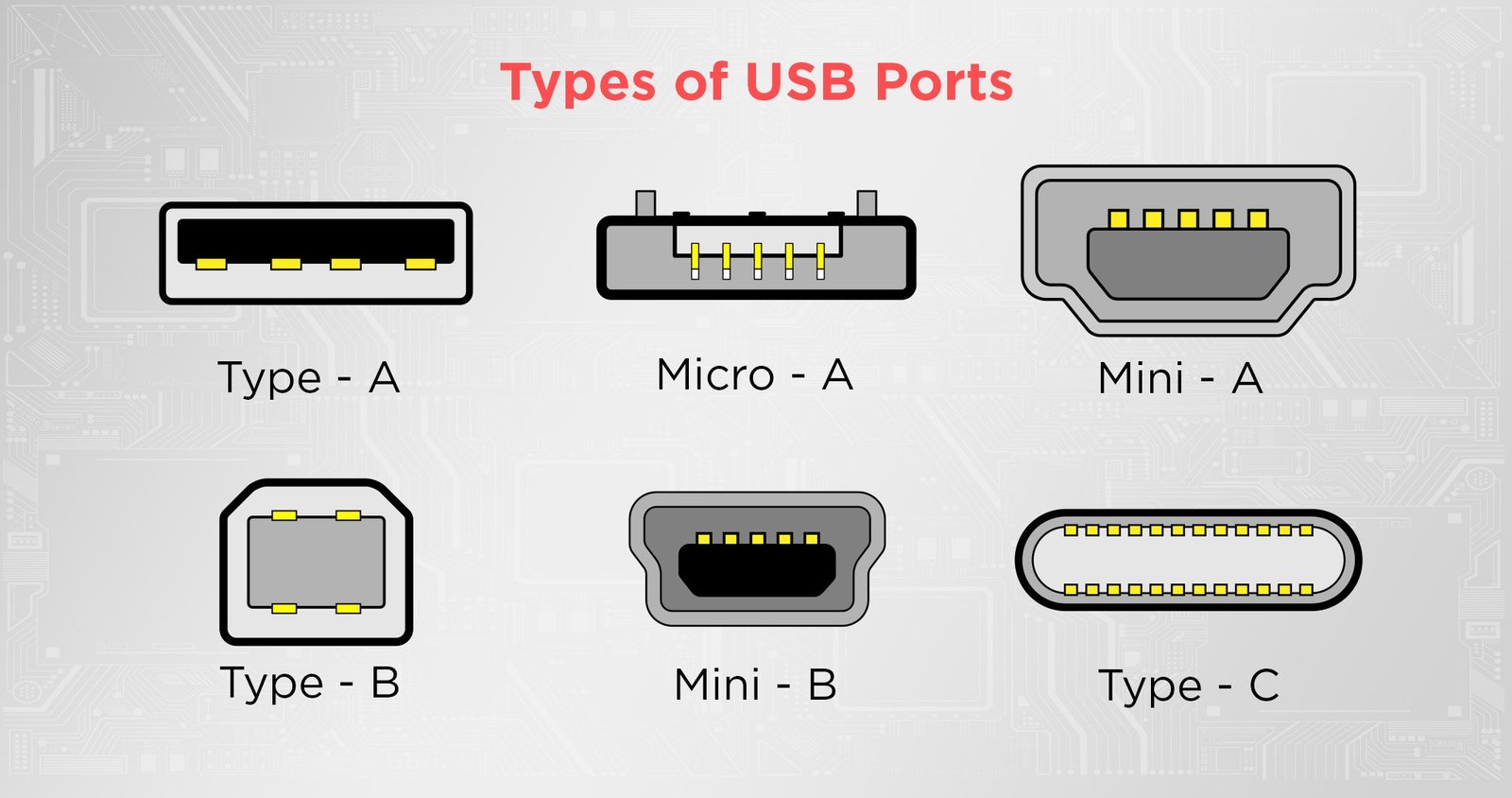
USB 4.0 supports up to 40 Gbps, equal to Thunderbolt 3 speeds. These ports are often Type-C and marked with a lightning bolt icon.
Visual Clues: Spotting the Fastest USB Port by Color
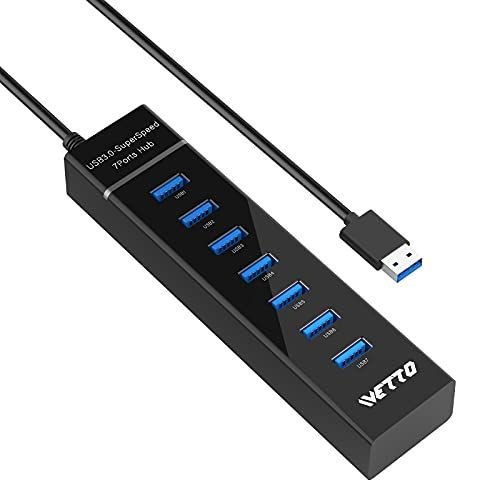
Most laptop technicians, including those of us at Lansotech Solutions, start by checking port colors.
Blue Ports vs. Black Ports
- Blue = Fast (USB 3.x)
- Black or White = Slow (USB 2.0)
That’s your quickest visual indicator.
Red or Yellow Ports: Always-On Power Ports
These ports stay powered even when your laptop is off — useful for charging phones. They may not always be the fastest, but they’re handy.
Check the USB Symbols: Reading the Logos Correctly
Your laptop or desktop may have symbols that reveal the port’s generation.
The “SS” Symbol and What It Means
“SS” stands for SuperSpeed, referring to USB 3.0 or newer.
If you see SS+, that’s USB 3.1 or 3.2 — even faster!
Thunderbolt Icons Explained
If you see a lightning bolt icon, that means it supports Thunderbolt — capable of 40 Gbps and daisy-chaining multiple devices.
Device Manager Method: Finding USB Speed in Windows
Sometimes visuals alone aren’t enough. You can confirm your USB version via Windows Device Manager.
Step-by-Step Guide for Windows 10/11 Users
- Right-click the Start Menu → Select Device Manager.
- Expand Universal Serial Bus Controllers.
- Look for entries containing “USB 3.0,” “USB 3.1,” or “xHCI.”
If you see those, you’re using a high-speed port.
Using Mac and Linux to Identify Fast USB Ports
Checking System Report on macOS
- Click Apple Menu → About This Mac → System Report.
- Under USB, check the Speed column.
- Anything labeled Up to 5 Gbps or higher means USB 3.0+.
Using Terminal Commands on Linux
Run the command:
lsusb -t
This will show you the speed and bus type for each connected USB device.
Testing USB Port Speed Using Free Software Tools
Even without opening hardware or diving into settings, you can test your USB port’s performance.
Recommended Free Tools for Speed Checking
- USBDeview by NirSoft
- CrystalDiskMark (for storage devices)
- HWiNFO for detailed hardware info
How to Interpret Speed Test Results
- 480 Mbps (60 MB/s) → USB 2.0
- 5 Gbps (625 MB/s) → USB 3.0
- 10–20 Gbps → USB 3.1/3.2
- 40 Gbps → USB 4.0 or Thunderbolt
Hardware-Level Clues: Motherboard and Laptop Labels
Manufacturers often label their USB ports, especially on desktops.
Manufacturer Markings and Spec Sheets
Check your laptop manual or manufacturer’s website. You’ll find detailed specs about which ports are USB 3.0 or higher.
For instance, Dell and HP often indicate this with “SS” or a lightning bolt symbol near the port.
Advanced Insights: How USB Versions Affect Real-World Performance
When it comes to USB speed, theoretical numbers tell only half the story. Real-world performance depends on the device, cable quality, controller type, and system configuration.
Theoretical vs. Actual Transfer Speeds
| USB Version | Theoretical Speed | Typical Real-World Speed | Notes |
|---|---|---|---|
| USB 2.0 | 480 Mbps (60 MB/s) | ~30–40 MB/s | Limited by protocol overhead |
| 3.0 | 5 Gbps (625 MB/s) | ~350–400 MB/s | Depends on drive and controller |
| 3.1 Gen 2 | 10 Gbps (1.25 GB/s) | ~800–900 MB/s | Often used for SSDs |
| USB 3.2 Gen 2×2 | 20 Gbps (2.5 GB/s) | ~1.5–2 GB/s | Dual-lane operation |
| USB4 / Thunderbolt 4 | 40 Gbps (5 GB/s) | ~3–4 GB/s | Top-tier data speed |
These speeds show why identifying your fastest USB port is so important, especially when transferring large media files, backups, or running virtual machines from external drives.

Cable and Connector Quality: The Hidden Speed Limiter
Even if your laptop has a USB 3.2 port, a low-quality cable can limit performance drastically.
How to Spot a High-Speed USB Cable
- Thicker cable with proper shielding (reduces interference).
- Labeled “SuperSpeed” or “SS” near the connector.
- Type-C cables that support USB 3.2 or Thunderbolt typically have certification logos.
Common Mistakes Users Make
- Using USB 2.0 cables on USB 3.0 devices — major speed drop.
- Plugging high-speed devices into front-panel USB ports (some cases use slower hubs).
- Ignoring firmware or driver updates for USB controllers.
Pro Tip from Lansotech Solutions: Always use the cable that came with your device or buy one that specifically lists its USB version and data transfer speed.
Troubleshooting Slow USB Speeds
If your USB device isn’t performing as expected, follow this technician-tested checklist.
Step-by-Step Troubleshooting Guide
- Check the port color or label – Are you using a USB 3.0+ port?
- Test another cable – A bad or mismatched cable can be the issue.
- Plug directly into the laptop – Avoid hubs or docking stations when testing.
- Update chipset and USB drivers – Outdated drivers can throttle performance.
- Check for power-saving settings – Disable USB Selective Suspend in Windows power settings.
Bonus Tip
Use Device Manager → Properties → Power Management tab to ensure your USB controller isn’t being turned off to save power.
Benchmarking Example: USB Speed Test in Action
Let’s look at a quick real-world test from a typical laptop setup at Lansotech Solutions.
| Device | Port Type | Test Tool | Read Speed (MB/s) | Write Speed (MB/s) |
|---|---|---|---|---|
| SanDisk Ultra USB 3.0 (64GB) | USB 2.0 Port | CrystalDiskMark | 38 MB/s | 32 MB/s |
| SanDisk Ultra USB 3.0 (64GB) | USB 3.0 Port | CrystalDiskMark | 125 MB/s | 110 MB/s |
| T7 Samsung SSD | USB-C (USB 3.2 Gen 2) | CrystalDiskMark | 990 MB/s | 930 MB/s |
| Samsung T7 SSD | Thunderbolt 4 | CrystalDiskMark | 2850 MB/s | 2750 MB/s |
Notice how the same device performs 25x faster just by changing the port. This is why it’s crucial to identify your fastest USB port before starting a large file transfer.
FAQs About USB Port Speed
1. How do I instantly know which USB port is fastest?
Look for blue or Type-C ports with “SS” or “Thunderbolt” icons.
2. Is USB Type-C always the fastest?
Not always — check for the Thunderbolt or USB 3.2/4.0 label.
3. Can I upgrade my laptop to have faster USB ports?
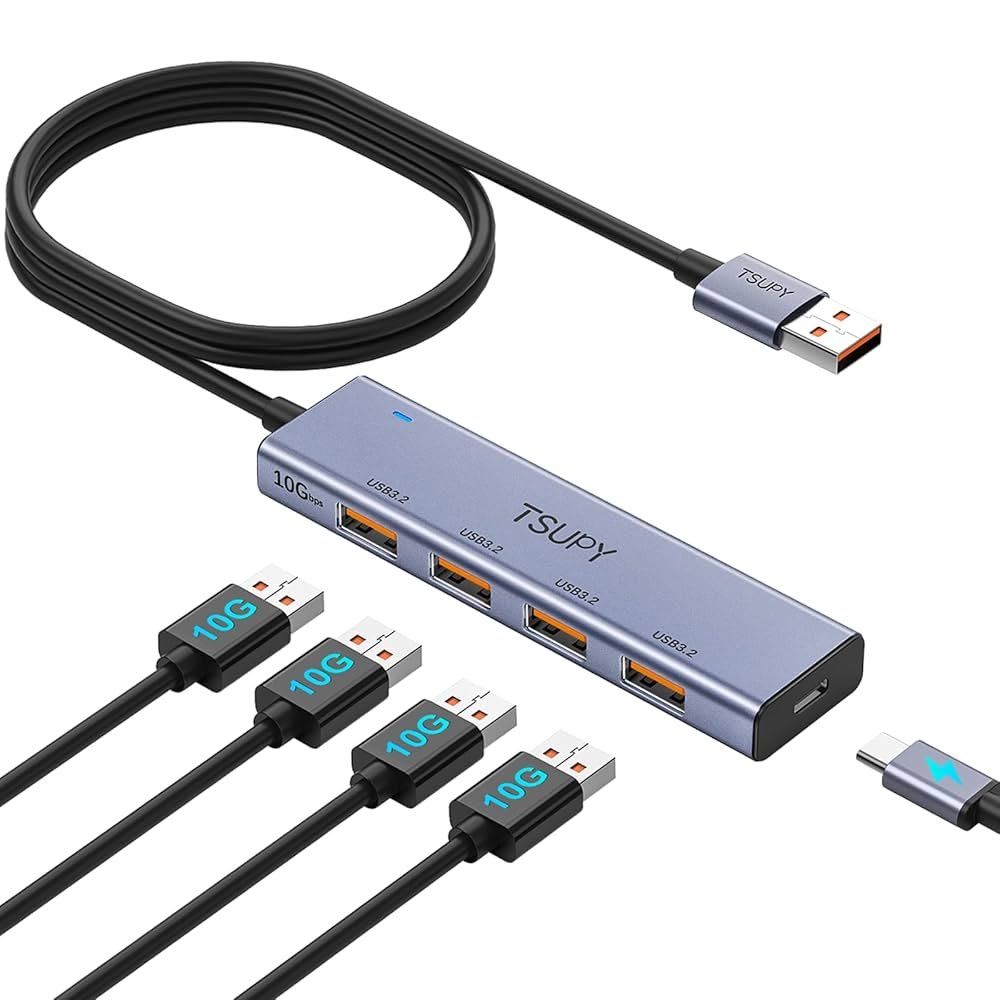
You can add an external USB 3.0 hub or PCIe expansion card (for desktops).
4. What happens if I plug a USB 3.0 device into a 2.0 port?
It’ll still work — just at slower speeds.
5. How do I test my USB port speed safely?
Use tools like CrystalDiskMark or USBDeview — both are safe and reliable.
6. What’s the difference between USB 3.1 Gen 1 and Gen 2?
Gen 1 = 5 Gbps, Gen 2 = 10 Gbps.
Expert Tips from Lansotech Solutions
As professional laptop technicians, we’ve handled countless systems where users didn’t realize they were underutilizing their hardware. Here are our top recommendations:
- Label your fastest ports with stickers if your device doesn’t already mark them.
- Avoid USB hubs when transferring critical data. Direct connection = maximum speed.
- Always use manufacturer cables for Thunderbolt and USB4 devices.
- Regularly check for BIOS updates — they often improve port stability and performance.
- Back up using fast ports for external SSDs to drastically reduce backup times.

Lansotech Solutions,
Call/WhatsApp 0791-833-529 Start WhatsApp Chat>>
Visit us: Portal Place House, at the Muindi Mbingu/Banda Street Junction, 2nd Floor Shop 207,
website Click Here>>












 ASUS
ASUS



