










The Moment You Realize Speed Isn’t Just About Power
I will help you Know Which USB Port Is the Fastest. Let me tell you a story;
Last week at Lansotech Solutions, a regular client walked in with frustration written all over his face. He had just bought a lightning-fast external SSD — sleek, silver, and expensive — but it was crawling like an old flash drive from 2008.
When I plugged it into a different port on his laptop, the transfer speed jumped from 35 MB/s to nearly 900 MB/s. His jaw dropped.
He whispered, “That’s all I had to do?”
Yes. Sometimes, all it takes is knowing which USB port is truly the fastest — and that tiny bit of knowledge can completely transform your experience with technology.
If you’ve ever felt your heart sink watching a painfully slow file transfer, this guide is for you.
The Core of USB Speed
Your laptop is more than metal and silicon — it’s a partner in your daily grind, your creative flow, your work, your dreams. And every USB port on it plays a role in how smoothly that partnership works.
Yet, not all ports are created equal. Some are old warriors (USB 2.0), still doing their best. Others are speed demons (USB 3.2 or Thunderbolt 4), built to transfer your data before you can blink.
When you plug into the wrong one, it’s like asking a bicycle to race a sports car.
Let’s fix that together — once and for all.
Step 1: The Color Test — A Technician’s First Clue
Whenever a customer brings me a laptop, I always glance at one thing first: the color of the USB port.
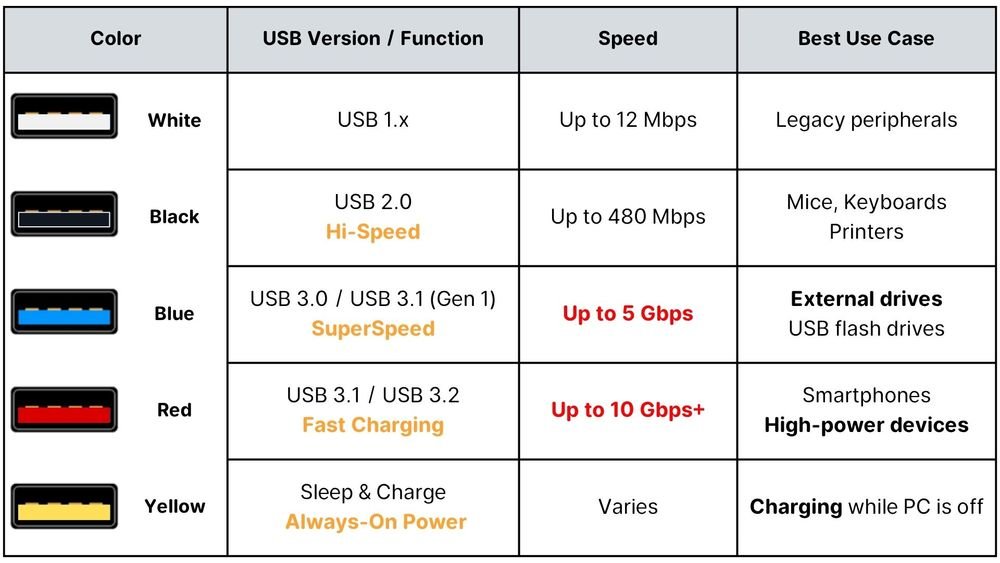
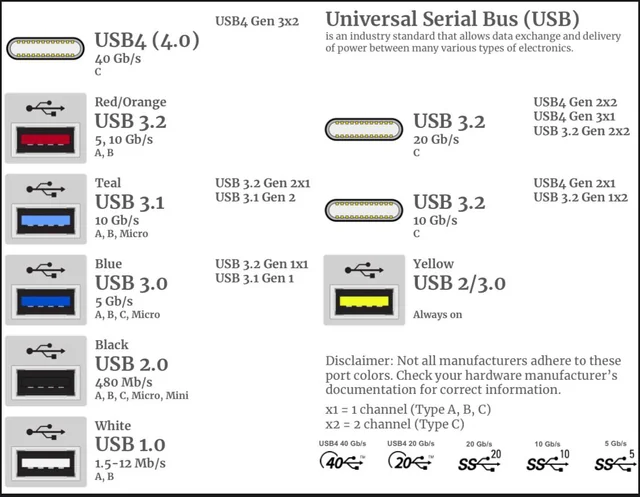
Blue Port = Fast Lane
If your USB port is blue, congratulations — you’ve found your speed hero.
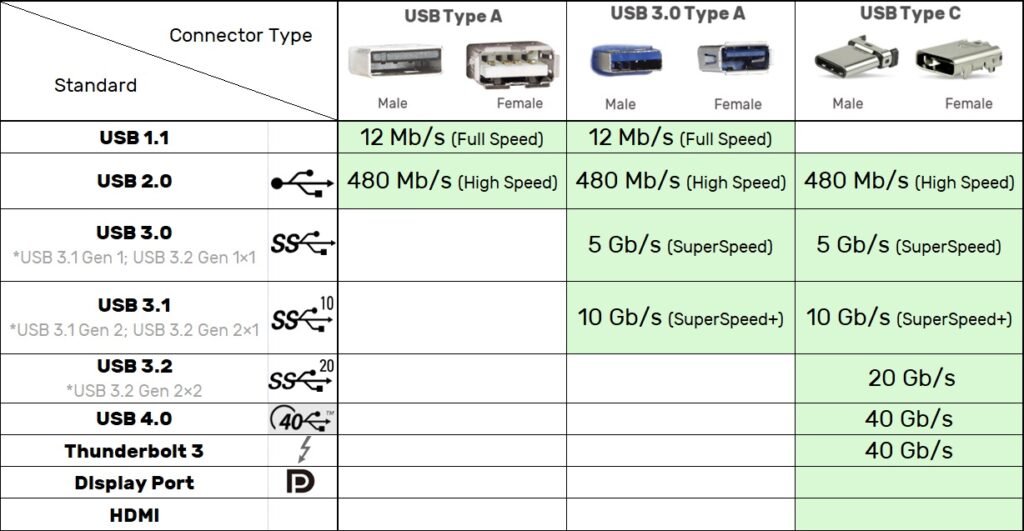
That color means USB 3.0 or newer, capable of speeds up to 5 Gbps or more.
Black or White Port = Slow Lane
These are your USB 2.0 ports — reliable, but much slower. Perfect for keyboards, mice, and printers, but not for massive file transfers.
Red or Yellow Port = Charging While Off
You might see a red or yellow USB port on some laptops. These are “Always On” ports that can charge devices even when your laptop is powered down. Fast for charging, but not necessarily for data.
Tip from Lansotech: Blue = Speed. Black = Basic. Red = Power.
That color coding is your first emotional connection to how your laptop communicates with the world.
Step 2: Symbols Tell Stories — Look Closer
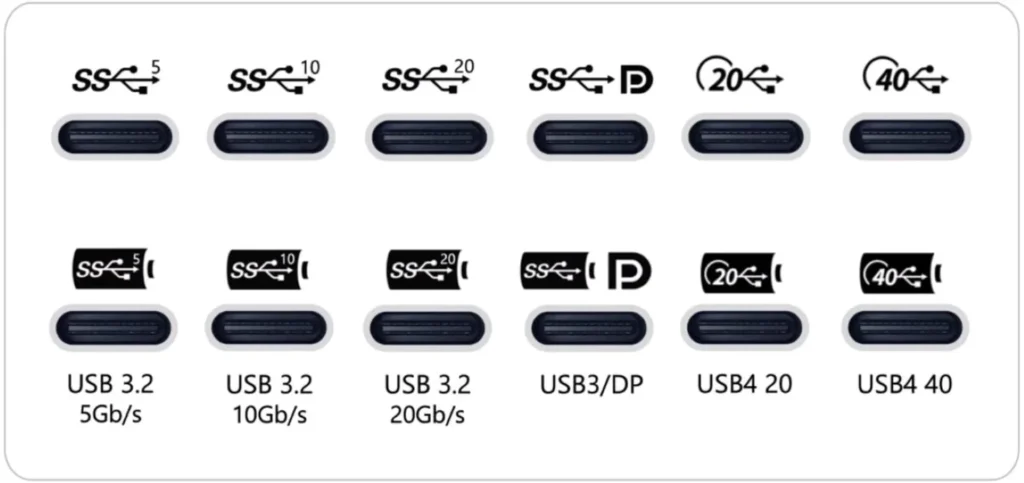
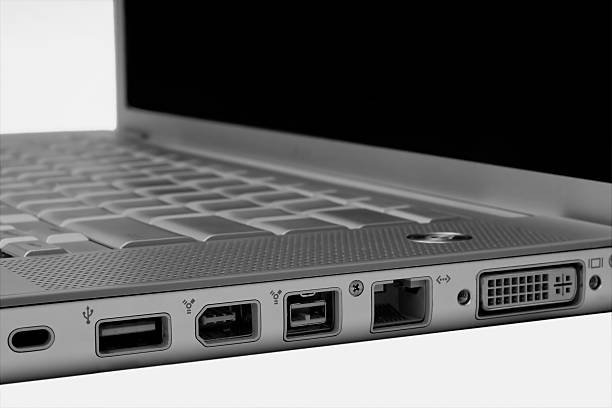
Have you ever noticed tiny symbols next to your USB ports? They’re not there for decoration.
“SS” — The Secret Code for SuperSpeed
If you see “SS”, it stands for SuperSpeed, meaning USB 3.0 or higher.
Sometimes it’s paired with a number (like SS10), indicating 10 Gbps (USB 3.1).
Thunderbolt — The Lightning God of Data
A lightning bolt icon? That’s Thunderbolt, the king of ports.
It can handle speeds up to 40 Gbps — that’s faster than your Wi-Fi, faster than your Ethernet, faster than almost anything you can plug in.
When I see that icon, I feel the same rush as watching a race car roar to life. It’s raw power, waiting to be unleashed.
Step 3: Use Windows to Reveal the Truth
If colors and symbols aren’t enough, your system can tell you exactly what’s going on.
🔧 Here’s How:
- Right-click on the Start Menu.
- Click Device Manager.
- Scroll to Universal Serial Bus Controllers.
- Look for words like USB 3.0, USB 3.1, or xHCI — those are your fast ports.
No color confusion. No guessing. Just pure, technical truth.
Watching your port’s name appear under “SuperSpeed” in Device Manager feels like unmasking a superhero.
Step 4: Mac Users, You’re Not Left Out
How to Check on macOS
- Click the Apple Menu → About This Mac.
- Choose System Report.
- Under USB, you’ll see the details for each port — look for speeds of 5 Gbps, 10 Gbps, or more.
It’s like your Mac whispering, “Hey, I’ve got the power you’re looking for.”
Step 5: Test It and Feel the Difference
Nothing is more satisfying than seeing your device’s speed leap off the charts.
You can use free tools like:
- USBDeview (shows which port your device is using)
- CrystalDiskMark (tests real transfer speeds)
Plug your device into each port and run a test. You’ll feel the difference — it’s like shifting from a dusty old road to a smooth, open highway.
That first test result that hits 900 MB/s? That’s pure joy for a technician’s heart.
Step 6: Check the Specs — Your Laptop’s Hidden Map
Your laptop’s manual (or the manufacturer’s website) is a goldmine. It lists every port, its type, and speed.
For example:
- Dell XPS 13: Two USB-C Thunderbolt 4 ports (40 Gbps)
- HP Pavilion: One USB 3.1 Gen 1 port (5 Gbps), two USB 2.0 ports
- Lenovo ThinkPad: One USB 3.2 port (10 Gbps), one USB-C (20 Gbps)
Why Understanding Speed Builds Confidence
Technology can feel intimidating.
All those terms — USB 3.2 Gen 2×2, Thunderbolt 4, Type-C — they sound like they belong in a lab, not your home office.
But here’s what I tell every customer:
“You don’t have to be an engineer to understand your laptop — you just have to listen to it.”
The moment you realize you can identify the fastest port yourself, something shifts inside you.
You feel in control again.
You feel smarter, stronger, and ready.
That emotional spark — that’s what tech empowerment feels like.
And it’s what drives us every single day at Lansotech Solutions.
Step 12: What You Can Do Right Now
If you’re reading this and wondering where to start, try this:
- Grab your external hard drive or USB stick.
- Look at your laptop — find that blue, red, or Type-C port.
- Plug it in there.
- Run a quick file transfer test.
You’ll see it — that moment when speed meets awareness.
It’s not just about data. It’s about you discovering what your laptop has been capable of all along.
FAQs About USB Port Speed
1. How can I instantly know which USB port is fastest?
Look for blue ports or Type-C ports with “SS” or “Thunderbolt” icons.
2. Are all USB-C ports fast?
No — some USB-C ports are only USB 2.0 internally. Always check the specs or symbols.
3. Can I make a slow USB port faster?
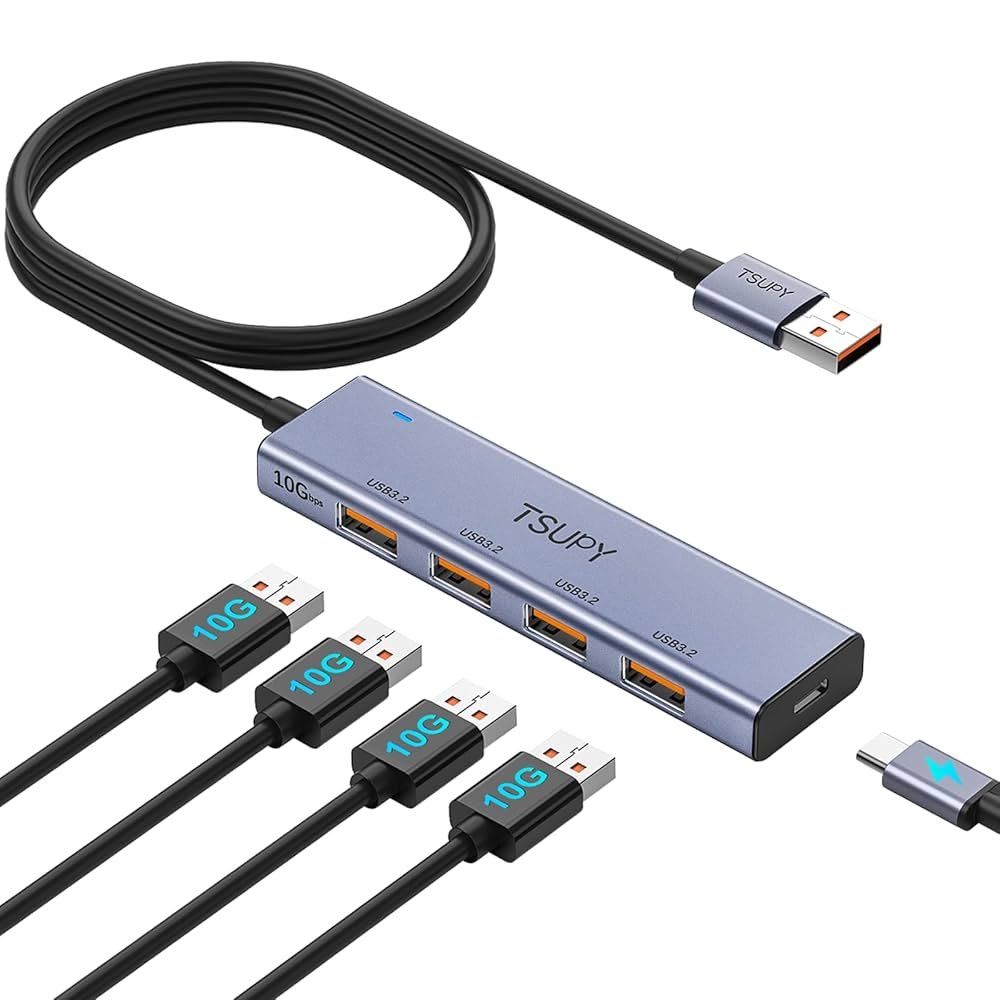
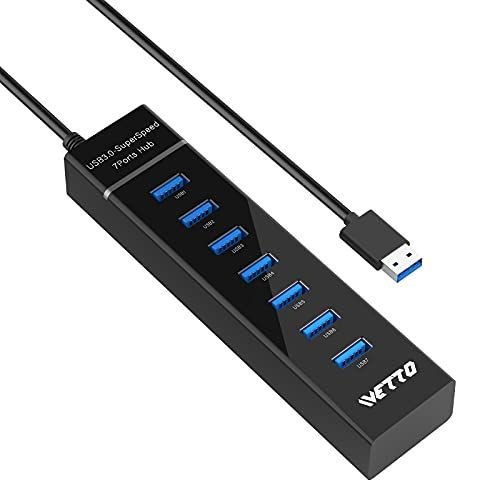
You can’t change the port itself, but using an external USB 3.0 hub (connected to a fast port) can help.
4. Why is my USB drive still slow in a fast port?
It might be the drive’s own speed or a low-quality cable.
5. What’s the best way to test my USB speed?
Use CrystalDiskMark or USBDeview — both are reliable and free.
6. Does using the fastest USB port damage devices?
Not at all! In fact, using the right port helps prevent overheating and data loss.
Expert Tips from Lansotech Solutions
As professional laptop technicians, we’ve handled countless systems where users didn’t realize they were underutilizing their hardware. Here are our top recommendations:
- Label your fastest ports with stickers if your device doesn’t already mark them.
- Avoid USB hubs when transferring critical data. Direct connection = maximum speed.
- Always use manufacturer cables for Thunderbolt and USB4 devices.
- Regularly check for BIOS updates — they often improve port stability and performance.
- Back up using fast ports for external SSDs to drastically reduce backup times.
Identifying the fastest USB port isn’t rocket science — it’s about knowing what to look for:
Blue or Type-C port? Fast.
“SS” or “Thunderbolt” icon? Faster.
40 Gbps marking? Fastest.
At Lansotech Solutions, our mission is to simplify technology for everyday users. Whether you’re transferring data, connecting peripherals, or charging devices, a few seconds spent checking your USB ports ensures maximum speed and efficiency.
Lansotech Solutions,
Call/WhatsApp 0791-833-529 Start WhatsApp Chat>>
Visit us: Portal Place House, at the Muindi Mbingu/Banda Street Junction, 2nd Floor Shop 207,
website Click Here>>


















 ASUS
ASUS



