




 Laptop Computers
 Desktop Computers
 Printers

 Network
 Software
 Laptop Accessories
 Laptop Components
 Office
 Desktop peripherals
 Server

Hurry and get discounts on all Apple devices up to 20%
Sale_coupon_15
KSh4,000.00 excl. VAT
Payment Methods:

Replacing the screen on your HP EliteBook 2170p is a reliable way to restore clear visuals and full functionality if your display is cracked, flickering, displaying strange lines, or completely blank. This guide explains what screen is compatible, how the replacement works, tools you need, and important tips to ensure a successful repair.
Your EliteBook 2170p may need a screen replacement if you notice:
Cracks, spots, or visible physical damage
Flickering image or unstable visuals
Vertical/horizontal lines or distortion on the screen
Blank or black screen with laptop powering on
Backlight failure or uneven brightness
These issues typically indicate the LCD panel or display assembly is damaged and should be replaced.
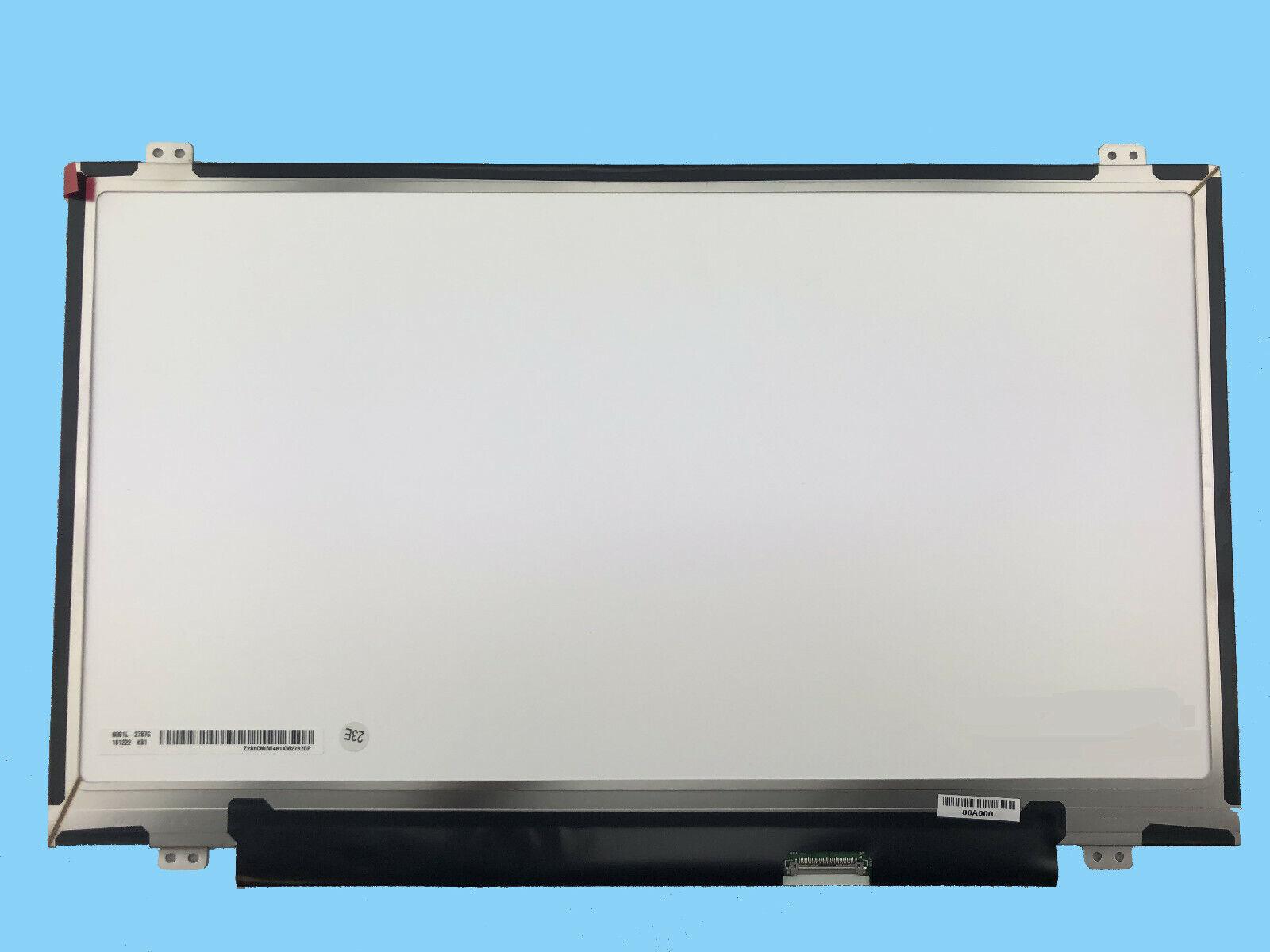
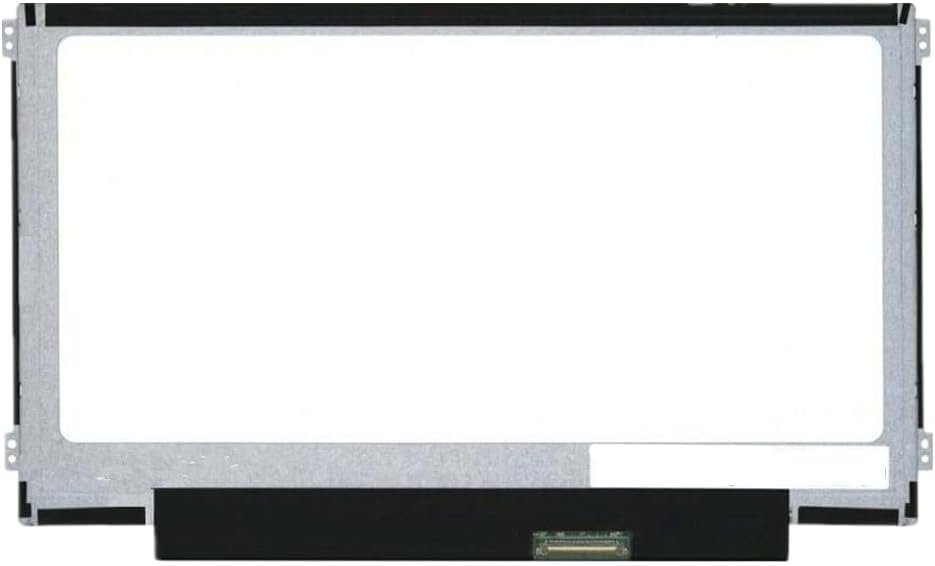
The HP EliteBook 2170p uses a 12.5-inch LCD panel with either WXGA (1366 × 768) resolution or HD+ (1600 × 900), depending on the original model configuration.
✔ 11.6″ WXGA (1366 × 768) LED Replacement – Standard replacement
✔ 12.5″ HD+ (1600 × 900) LED Replacement – Enhanced clarity if originally supported
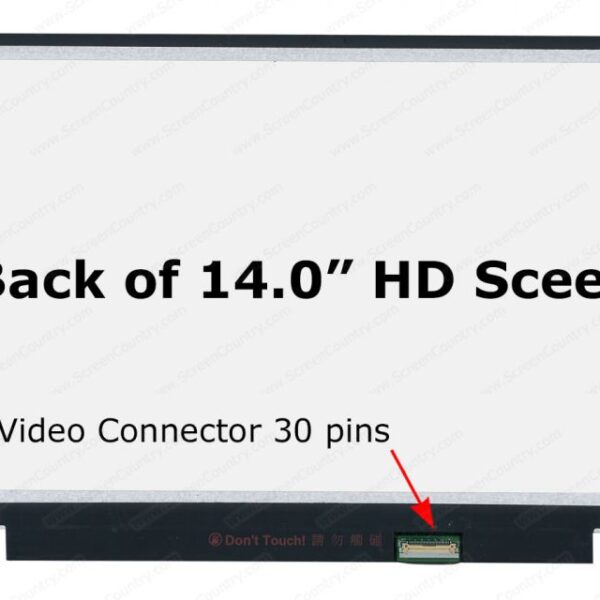
⚠ Important: Always confirm your current panel’s resolution and connector type before purchasing a replacement screen. Most HP EliteBook 2170p laptops use an LED backlit panel with a 30-pin eDP connector.
Before beginning, gather the following tools:
Small Phillips screwdriver
Plastic pry tool / spudger
Tweezers
Anti-static wrist strap (optional)
Clean microfiber cloth
No soldering is required — the screen is mounted with screws and ribbon cables.
Safety Reminder: Always power off the laptop and remove the battery before starting any repair.
Shut down your laptop completely.
Disconnect the power adapter.
Remove the battery (if removable).
Use a plastic pry tool to carefully detach the screen bezel (plastic frame around the display).
Work around the edges gently; clips hold the bezel in place — do not force.
With the bezel removed, you will see screws securing the screen to metal brackets.
Remove these screws carefully from both sides.
Tilt the screen forward slowly.
Locate the video/display cable on the back of the panel.
Disconnect it gently — pull from the reinforced connector, not the cable itself.
Align the new screen with the mounting brackets.
Secure the display cable properly.
Replace the mounting screws.
Snap the display bezel back into place.
Reinstall the battery (if removed).
Reconnect power.
Turn on the laptop to verify the new screen is functioning correctly — test brightness, clarity, and color.
Before ordering a replacement screen for your HP EliteBook 2170p:
Confirm the screen size (11.6″)
Verify the resolution (WXGA or HD+)
Check the connector type (usually 30-pin LED eDP)
✔Ensure backlight type is LED
Matching all of these ensures your replacement panel will work correctly with your laptop.
Using excessive force to remove the bezel
Pulling on the ribbon cable instead of the connector
Purchasing an incompatible resolution screen
Touching the LCD surface with bare fingers
Skipping compatibility verification
Avoiding these errors improves the chances of a successful installation.
The cost of replacing a laptop screen can vary based on:
Screen resolution (standard vs higher resolution)
LED panel quality
Professional installation vs DIY
Part sourcing and shipping
LED panels are typically brighter, more energy-efficient, and slightly more expensive than older CCFL-type screens.
Consider professional help if:
You are uncomfortable working with laptop hardware
You want warranty coverage on installation
You suspect other damage to display cables or internal hardware
Technicians can verify part compatibility and ensure precise installation.
Upgrade your HP screen laptop and redefine your display expectations with our exceptional screen replacement. Whether you’re gaming, working, or enjoying multimedia content, our screen replacement guarantees an enhanced visual experience that surpasses all others.
Get the HP elitebook 2170p service from Lansotech Solutions now!
No account yet?
Create an Account











 ASUS
ASUS



