





 Laptop Computers
 Desktop Computers
 Printers

 Network
 Software
 Laptop Accessories
 Laptop Components
 Office
 Desktop peripherals
 Server
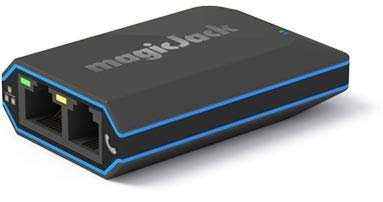
HP EliteBook 2560 / 2560p / 2570 / 2570p Keyboard Replacement
Layout: US Standard
Design: Chiclet‑style keys for comfort and speed
Condition: Brand new, genuine OEM part
Compatibility: HP EliteBook 2560, 2560p, 2570, and 2570p

Hurry and get discounts on all Apple devices up to 20%
Sale_coupon_15
KSh1,800.00 excl. VAT
Payment Methods:

A keyboard is more than just keys—it’s where your thoughts take shape, your work begins, and your creativity flows. When the keyboard on your HP EliteBook 2560, 2560p, 2570, or 2570p starts to fail, every keystroke becomes a struggle. Sticking keys, unresponsive buttons, or worn‑out letters can slow you down and make daily tasks frustrating.
At Lansotech Solutions, we understand the value of a smooth typing experience. That’s why we offer genuine HP EliteBook keyboard replacements right here in Nairobi CBD, ensuring your laptop feels as good as new.
When your keyboard isn’t working properly, your productivity suffers. Replacing it with a genuine part makes a huge difference:
✅ Perfect Fit: Specifically designed for HP EliteBook 2560, 2560p, 2570, and 2570p models.
✅ Smooth Typing: Enjoy accurate, responsive keystrokes every time.
✅ Durable Build: OEM quality ensures your keyboard lasts through countless hours of use.
✅ Professional Finish: Keeps your laptop looking sleek and professional.
✅ Quick Installation: Get back to work fast with expert replacement services.
Looking for reliable laptop keyboard shops in Nairobi CBD? Lansotech Solutions is trusted by professionals, students, and businesses across the city. Here’s what you can expect when you visit us:
🔧 Original HP replacement keyboards
🔧 Same‑day installation by certified technicians
🔧 Warranty on parts and labor
🔧 Clear guidance on maintenance and customization
Our technicians work carefully to ensure every keyboard replacement feels seamless and precise.
A new keyboard is not just a replacement—it’s an opportunity to make it uniquely yours. Here’s how to customize a keyboard for your HP EliteBook:
🎨 Apply keycap stickers or overlays with your favorite colors or shortcuts.
⚙️ Use key‑remapping software to set up custom shortcuts for tasks you perform most.
🛡️ Add a protective cover that matches your style while keeping out dust and spills.
Your new keyboard deserves care to stay in excellent condition for years:
Use compressed air regularly to clean between the keys.
Wipe the surface with a soft microfiber cloth to remove fingerprints and dirt.
Avoid eating or drinking near your laptop to prevent accidental damage.
Store your device in a dust‑free environment whenever possible.

No account yet?
Create an Account











 ASUS
ASUS



