




 Laptop Computers
 Desktop Computers
 Printers

 Network
 Software
 Laptop Accessories
 Laptop Components
 Office
 Desktop peripherals
 Server

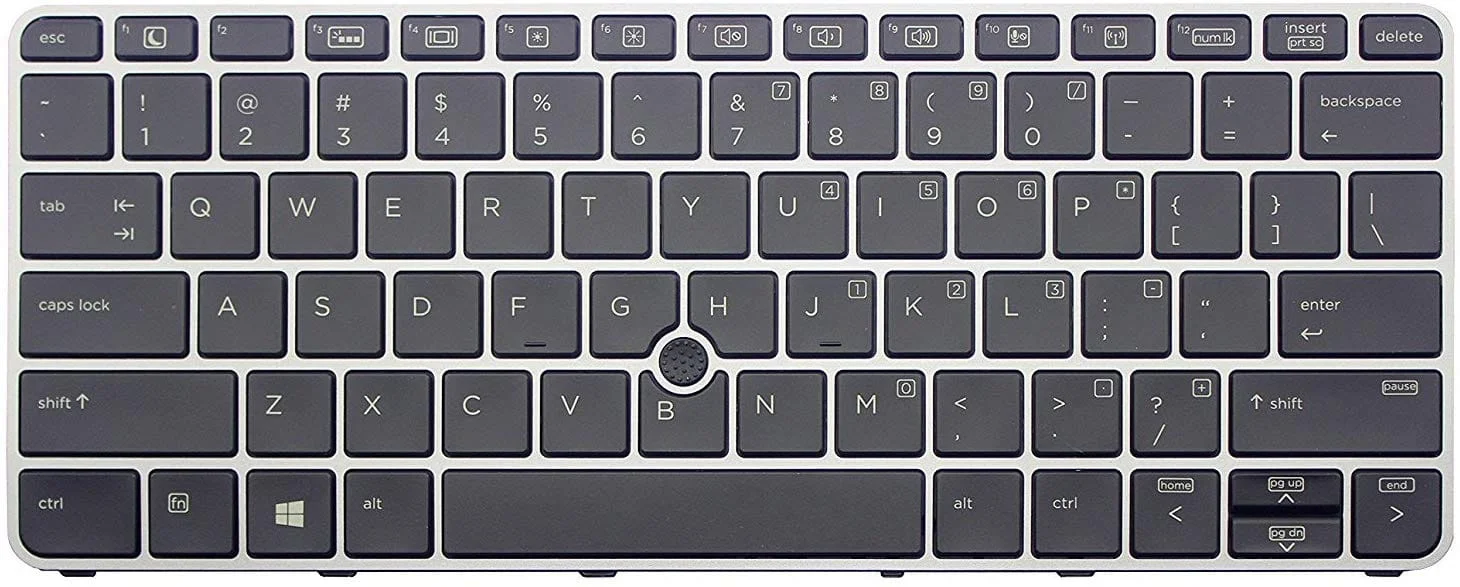
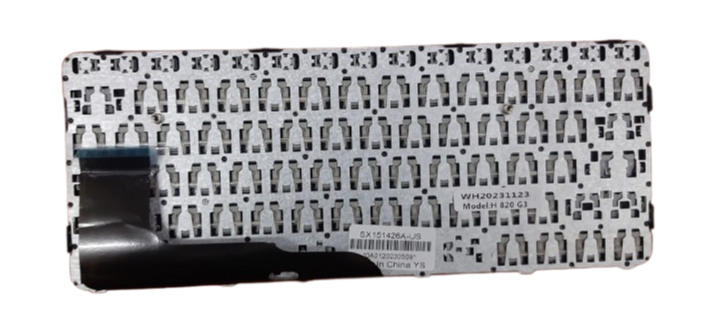
HP EliteBook 725 G3 / 725 G4 / 820 G3 / 820 G4 Keyboard Replacement
Layout: US Standard Layout
Type: Chiclet‑style keys, optional backlit versions available
Condition: Brand new, OEM quality replacement
Compatibility: Designed for HP EliteBook 725 G3, 725 G4, 820 G3, and 820 G4

Hurry and get discounts on all Apple devices up to 20%
Sale_coupon_15
KSh1,800.00 excl. VAT
Payment Methods:

Your keyboard is the heartbeat of your laptop—every project, every email, and every idea begins with a keystroke. When the keyboard on your HP EliteBook 725 G3, 725 G4, 820 G3, or 820 G4 becomes unresponsive, sticky, or physically damaged, it disrupts your work and interrupts your flow. A high‑quality replacement is not just a fix, it’s a revival of your laptop’s full potential.
At Lansotech Solutions, located in the heart of Nairobi CBD, we specialize in genuine HP keyboard replacements, delivering smooth, accurate typing experiences and giving your laptop a new lease on life.
Using an authentic keyboard designed for your specific model is crucial for perfect fit and performance. Here’s what you get with our HP EliteBook keyboard replacements:
✅ Full Compatibility: Engineered precisely for HP EliteBook 725 G3, 725 G4, 820 G3, and 820 G4 models.
✅ Responsive Typing: Every keypress is smooth and accurate, ensuring you type faster and with confidence.
✅ Durability: Built to endure long hours of heavy use without fading or wearing down.
✅ Premium Finish: A sleek, professional look that maintains your laptop’s elegant design.
✅ Optional Backlit Versions: Work comfortably in low‑light conditions when you choose the backlit option.
When searching for laptop keyboard shops in Nairobi CBD, you deserve a team that values your time and device. At Lansotech Solutions, we offer:
🔧 Genuine HP spare parts for guaranteed quality
🔧 Fast installation—often same‑day service
🔧 Warranty coverage and after‑sales support
🔧 Professional care from experienced technicians
We treat every device with the attention it deserves, ensuring your new keyboard feels just like it did on day one.
A new keyboard is a fresh canvas for personalization. Here’s how to customize a keyboard once it’s installed:
🎨 Add custom keycap stickers or overlays to match your style or workflow.
🛠️ Use software remapping tools to assign shortcuts that make your work faster and easier.
🛡️ Consider a protective cover that keeps dust and spills away while adding a sleek look.
After your replacement, proper care ensures your keyboard lasts longer and continues to perform flawlessly:
Clean regularly with compressed air to remove dust between keys.
Wipe gently with a microfiber cloth to maintain its shine.
Avoid food or drinks near your laptop to prevent accidental damage.
Store your laptop in a clean, dry place when not in use.

No account yet?
Create an Account











 ASUS
ASUS



