





 Laptop Computers
 Desktop Computers
 Printers

 Network
 Software
 Laptop Accessories
 Laptop Components
 Office
 Desktop peripherals
 Server


Hurry and get discounts on all Apple devices up to 20%
Sale_coupon_15
KSh6,000.00 excl. VAT
Payment Methods:

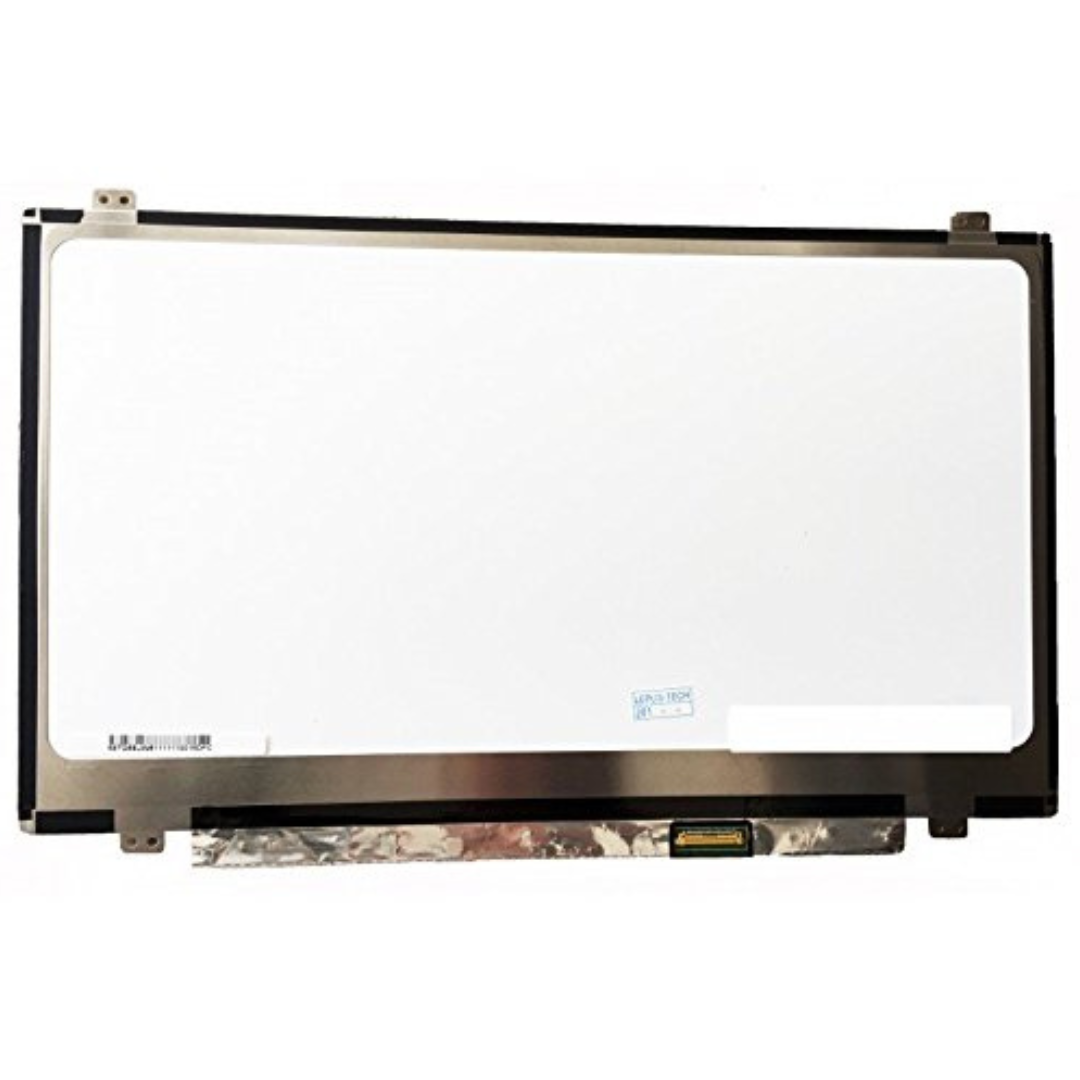
Replacing the screen on your HP EliteBook 840 G2 laptop can restore crisp visuals, remove dead pixels or cracks, and bring your device back to reliable everyday use. Whether the screen is cracked, flickering, showing lines, or not displaying at all, a proper screen replacement brings your EliteBook back to the clarity you expect for work, school, or personal use.
This guide explains the screen replacement process, what to consider, and how to ensure the best outcome for your laptop in Kenya.
Here are typical issues that indicate a malfunctioning screen:
Cracks or visible physical damage
Black or blank display on power-on
Flickering or distorted visuals
Vertical or horizontal lines across the screen
Dim, washed-out, or uneven brightness
Dead pixels or screen artifacts
If your laptop exhibits any of these symptoms, the screen or its connector may be faulty and often needs replacement.
The EliteBook 840 G2 typically comes with:
14-inch display panel
Full HD (1920 × 1080) or HD (1366 × 768) resolution options
LED backlit screen technology
These displays are mounted inside a thin frame and connected with a delicate video cable. Any impact, pressure, or wear over time can cause damage requiring a new panel.
Ensure you get a direct replacement screen that matches:
The correct size (14 inches)
The correct resolution (HD or Full HD)
The correct connector type
Using an incompatible screen can result in dim or non-functional displays.
The screen replacement requires:
Small Phillips and flat screwdrivers
Plastic opening tools or spudger
Tweezers (optional)
Clean workspace with good lighting
Never use sharp metal tools in direct contact with the panel — they can damage internal components.
Important: Before beginning, power off the laptop completely and disconnect the power adapter. Work on a stable surface and handle components gently.
Shut down the EliteBook 840 G2
Unplug the AC adapter
Slide the battery release and remove the battery
This prevents electrical damage during the replacement.
Open the laptop screen fully
Use a plastic opening tool to gently pry the bezel away from the frame
Work around all edges — don’t rush — clips are delicate
Be careful not to strain the webcam ribbon or cables.
Once the bezel is off, locate and remove the screws holding the display panel
Slowly tilt the panel forward
Carefully disconnect the video cable from the back of the screen
Do not pull hard — video cables are fragile.
Align and plug the video cable into the replacement panel’s connector
Ensure it clicks or sits firmly but do not force it
Once secure, place the new panel back into the frame.
Screw the replacement panel back into its mounting points
Snap the bezel back in place gently but firmly
Make sure all clips lock without gaps
Slide the battery back in
Connect the power adapter
Power on the laptop to confirm the new screen displays correctly
If you see the BIOS or Windows login screen clearly, the replacement was successful.
At Lansotech Solutions, we provide:
Genuine and high-quality replacement screens
Professional technician installation
Compatibility verification for HP EliteBook 840 G2
Warranty on parts and installation
Fast turnaround time and reliable service
Replacing a laptop screen yourself can save money, but professional support ensures safety, quality, and long-lasting results.
Avoid applying pressure to the screen edge or central area after installation
Keep liquids away from the keyboard and screen
Use a soft microfibre cloth to clean — no harsh chemicals
If flickering or other issues occur, return for a free inspection
A: A professional technician typically completes the replacement in about 30–60 minutes.
A: Only if the damage was caused by a manufacturing fault and covered under the original warranty. Physical damage usually requires a paid repair.
A: No — the screen replacement does not affect your data, but backing up important files is always recommended before any repair.
Upgrade your HP screen laptop and redefine your display expectations with our exceptional screen replacement. Whether you’re gaming, working, or enjoying multimedia content, our screen replacement guarantees an enhanced visual experience that surpasses all others.
Get the HP elitebook 840 g2 service from Lansotech Solutions now!


No account yet?
Create an Account











 ASUS
ASUS



