





 Laptop Computers
 Desktop Computers
 Printers

 Network
 Software
 Laptop Accessories
 Laptop Components
 Office
 Desktop peripherals
 Server
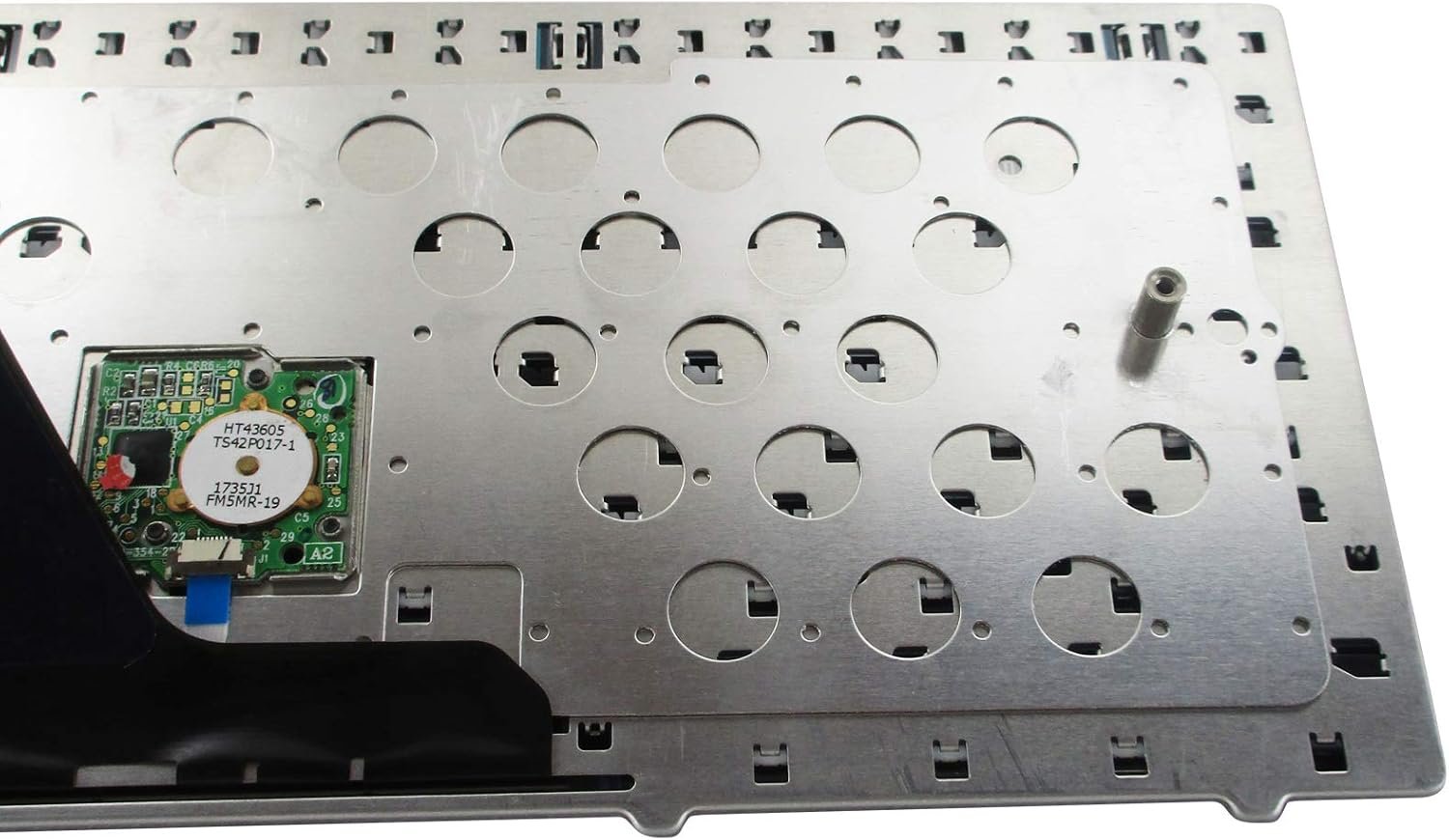
HP EliteBook 8440 / 8440p / 8440w Series Keyboard Replacement
Compatibility: HP EliteBook 8440, 8440p, and 8440w laptops
Design: OEM standard chiclet keyboard with spill‑resistant design
Condition: Brand new, high‑quality replacement part

Hurry and get discounts on all Apple devices up to 20%
Sale_coupon_15
KSh1,800.00 excl. VAT
Payment Methods:

Your keyboard is the heartbeat of your laptop, the medium through which your ideas flow into reality. When the keyboard on your HP EliteBook 8440, 8440p, or 8440w series laptop stops functioning—keys sticking, letters failing, or entire rows unresponsive—it can disrupt your work and productivity. At Lansotech Solutions, we bring life back to your device with a professional keyboard replacement service that guarantees precision, durability, and smooth performance.
A damaged or faulty keyboard can slow down your tasks, cause errors, and lead to frustration. A genuine replacement restores:
✅ Original Typing Comfort – Every key responds with the exact feel you expect.
✅ Spill‑Resistant Protection – Keep your laptop safer from accidental liquid damage.
✅ Enhanced Productivity – No more missed keystrokes or repeated corrections.
✅ Long‑Lasting Performance – Built to withstand heavy daily use for years to come.
At Lansotech Solutions, we are one of the most trusted laptop keyboard shops in Nairobi CBD. We offer:
🔧 Genuine HP keyboards for 8440, 8440p, and 8440w models
🔧 Fast and professional installation by trained technicians
🔧 Affordable pricing and reliable warranty
🔧 Same‑day service to minimize your downtime
We understand how crucial your laptop is to your daily work. That’s why we handle each replacement with care, ensuring your laptop feels as good as new.
Once your replacement is installed, you can enhance your typing experience further:
✨ How to customize a keyboard:
Add colorful keycaps or stickers for a personal touch.
Use key‑remapping software to assign shortcuts that boost your workflow.
Install a protective keyboard cover to keep dust and debris away.
With these simple steps, your keyboard will not only work perfectly but also reflect your unique style.
Sometimes, a keyboard issue is caused by dirt or debris. Before opting for replacement, try these steps:
Turn off your laptop and unplug all power sources.
Gently shake your laptop upside down to loosen debris.
Use compressed air to blow out dust between keys.
Wipe the keys with a soft microfiber cloth.
If your keys are still unresponsive, it’s time for a full replacement.
No account yet?
Create an Account











 ASUS
ASUS



