




 Laptop Computers
 Desktop Computers
 Printers

 Network
 Software
 Laptop Accessories
 Laptop Components
 Office
 Desktop peripherals
 Server
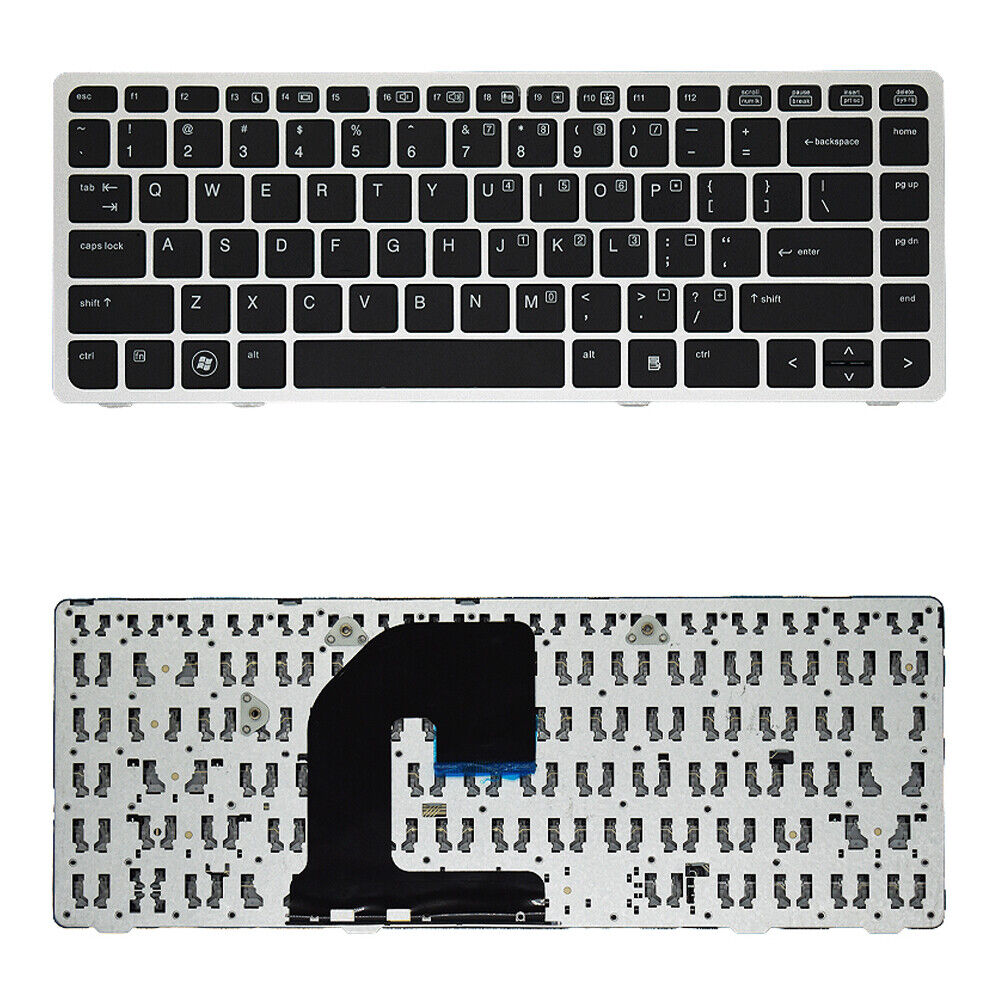
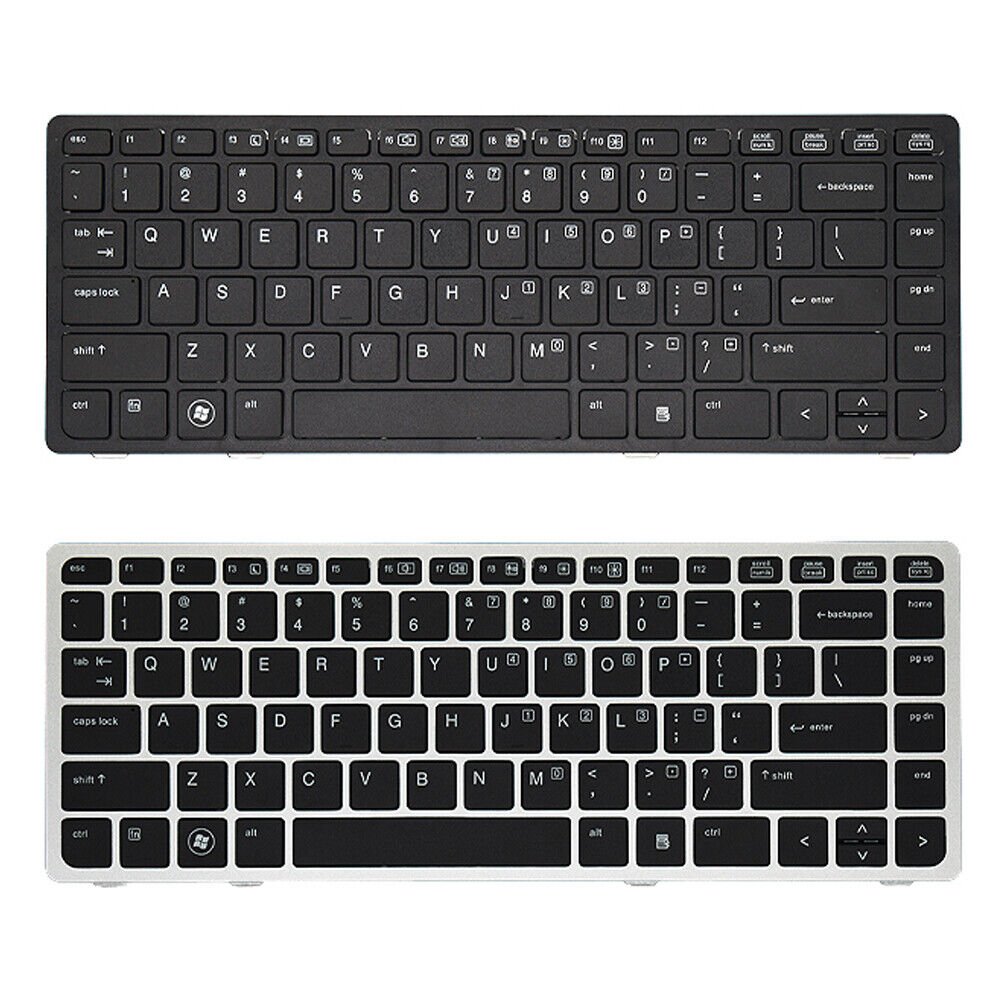
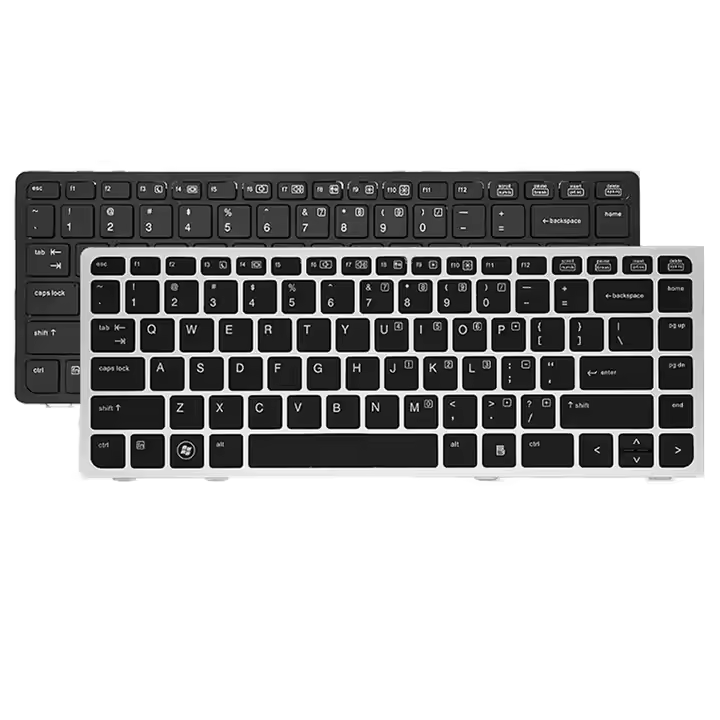
HP EliteBook / ProBook Keyboard Replacement
Compatible Models: HP EliteBook 8460, 8460p, 8460w, 8470p, 8470w, ProBook 6460b, 6465b
Type: Chiclet‑style, spill‑resistant design
Condition: Brand new,

Hurry and get discounts on all Apple devices up to 20%
Sale_coupon_15
KSh1,800.00 excl. VAT
Payment Methods:

At Lansotech Solutions, we know how much your keyboard means to you. It’s the bridge between your thoughts and the screen, the tool that helps you create, communicate, and conquer every task. When the keyboard on your HP EliteBook 8460, 8460p, 8460w, 8470p, 8470w, ProBook 6460b, or 6465b starts failing—keys not responding, letters missing—it can feel like you’re losing part of your workflow.
That’s why we provide genuine, high‑quality keyboard replacements that restore your laptop to peak performance.
Your HP laptop deserves the best. With our OEM‑grade keyboard replacements, you get:
✅ Perfect Compatibility – Designed specifically for HP EliteBook 8460/8460p/8460w/8470p/8470w and ProBook 6460b/6465b models.
✅ Durable Construction – Built to last, even with daily heavy use.
✅ Smooth Typing Experience – Soft, responsive keys that make typing effortless and accurate.
✅ Spill‑Resistant Design – Extra protection for your device during accidental spills.
We are proud to be one of the most trusted laptop keyboard shops in Nairobi CBD. At Lansotech Solutions, we guarantee:
🔧 Genuine replacement keyboards with warranty
🔧 Fast installation done by skilled technicians
🔧 Affordable pricing with excellent after‑sales support
🔧 Same‑day service to keep your work moving
Many users ask us, how to customize a keyboard once they get a replacement. There are simple ways to make your keyboard truly yours:
🎨 Change Keycaps: Install custom keycaps to add color and personality.
🎛️ Remap Keys: Use software to change key functions for your workflow.
💡 Add Accessories: Use keyboard covers or stickers to match your style.
With your new keyboard installed, you have the perfect foundation to explore customization options that make your laptop even more unique.
If your keyboard feels unresponsive due to dust or dirt, try these steps before replacement:
Turn off your laptop and disconnect power.
Gently shake the laptop upside down to remove loose debris.
Use compressed air to clear out hidden dust between keys.
Wipe the surface with a soft microfiber cloth.
If the issue continues, a professional replacement is the best solution.
No account yet?
Create an Account











 ASUS
ASUS




