





 Laptop Computers
 Desktop Computers
 Printers

 Network
 Software
 Laptop Accessories
 Laptop Components
 Office
 Desktop peripherals
 Server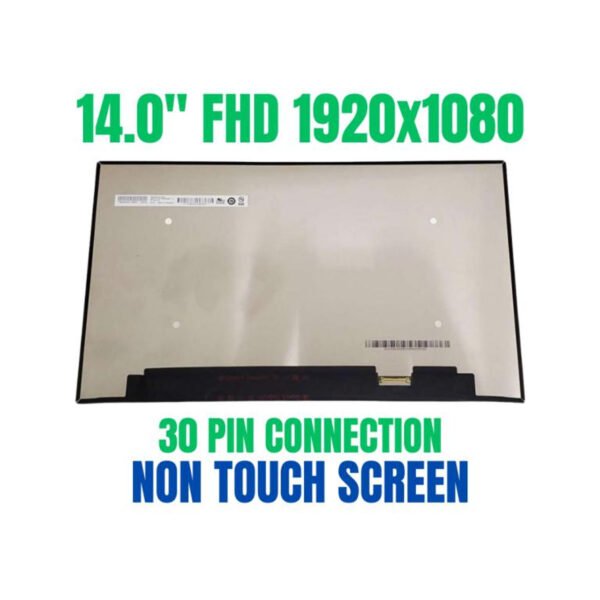

Hurry and get discounts on all Apple devices up to 20%
Sale_coupon_15
KSh7,000.00 excl. VAT
Payment Methods:

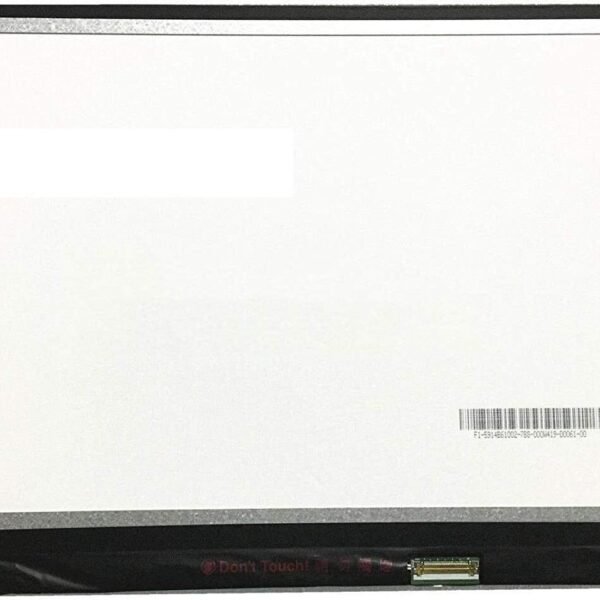
If your HP ProBook 450 G6 display is cracked, flickering, showing lines, or completely blank, replacing the screen is the most effective way to restore full visual performance. A broken screen prevents you from using your laptop comfortably, but with the right replacement panel and installation, you can enjoy clear and sharp visuals again.
This guide explains the symptoms, parts needed, step-by-step replacement process, and professional support options to ensure your laptop is repaired correctly.
Your HP ProBook 450 G6 may need a new screen if you see one or more of the following:
Cracked or shattered glass
Black or no display while laptop powers on
Vertical or horizontal lines across the screen
Flickering or unstable image
Dim display even at full brightness
Discoloration, dead pixels, or blotchy areas
If your laptop works with an external monitor but not on its own display, this confirms the internal screen is faulty and needs replacement.
The HP ProBook 450 G6 commonly features:
15.6-inch LED LCD panel
HD (1366 × 768) or Full HD (1920 × 1080) resolution
LED backlighting
Standard eDP video connector
Before ordering a replacement panel, confirm:
Screen size (15.6 inches)
Resolution (HD or Full HD)
Connector type and location
Incorrect panel choice may cause display issues or incompatibility.
To replace the screen safely, gather:
Small Phillips screwdriver
Plastic pry tool (spudger)
Tweezers (optional)
Clean, flat workspace
Soft cloth to protect the display
Avoid metal tools directly on plastic bezels — they can scratch or damage the laptop.
⚠️ Important: Power off the laptop and disconnect the power adapter before beginning.
Shut down the laptop completely.
Unplug the AC adapter.
Remove any connected devices (USB drives, headphones).
Disconnecting power helps prevent electrical issues during repair.
Open your laptop lid fully.
Carefully use a plastic pry tool to lift the screen bezel away from the frame.
Work gradually around both sides and top — do not rush.
The bezel is held by clips; excessive force can break them.
Locate the screws securing the display panel.
Remove them carefully.
Tilt the panel forward gently.
Disconnect the video cable from the back.
Be gentle — the video cable is delicate and easily damaged.
Align the replacement panel in position.
Plug the display video cable securely into the new screen.
Double-check that the connector is seated correctly.
Incorrect connection can cause no image or distorted visuals.
Screw the replacement panel back into the mounting frame.
Press the bezel back into place until all clips snap in securely.
Ensure the bezel sits flush without gaps.
Reconnect the AC adapter.
Power on the laptop.
Check for clear, stable display output.
If the screen shows a normal image with no flicker or distortion, the replacement was successful.
At Lansotech Solutions, we provide:
High-quality compatible replacement screens
Professional installation by experienced technicians
Compatibility testing and calibration
Fast turnaround time (often same-day service)
Warranty on parts and workmanship
Professional installation minimizes risks such as cable damage, improper fitting, or display instability.
Once the new screen is installed:
Avoid pressing directly on the surface — it may damage the LCD
Keep liquids and dust away from the display area
Wipe the screen gently with a soft cloth
If any brightness or flickering issues appear, return for inspection
Proper care helps maintain your new screen’s lifespan and picture quality.
Get the HP probook 450 g6 service from Lansotech Solutions now!
No account yet?
Create an Account











 ASUS
ASUS



