




 Laptop Computers
 Desktop Computers
 Printers

 Network
 Software
 Laptop Accessories
 Laptop Components
 Office
 Desktop peripherals
 Server


Hurry and get discounts on all Apple devices up to 20%
Sale_coupon_15
KSh10,000.00 excl. VAT
Payment Methods:

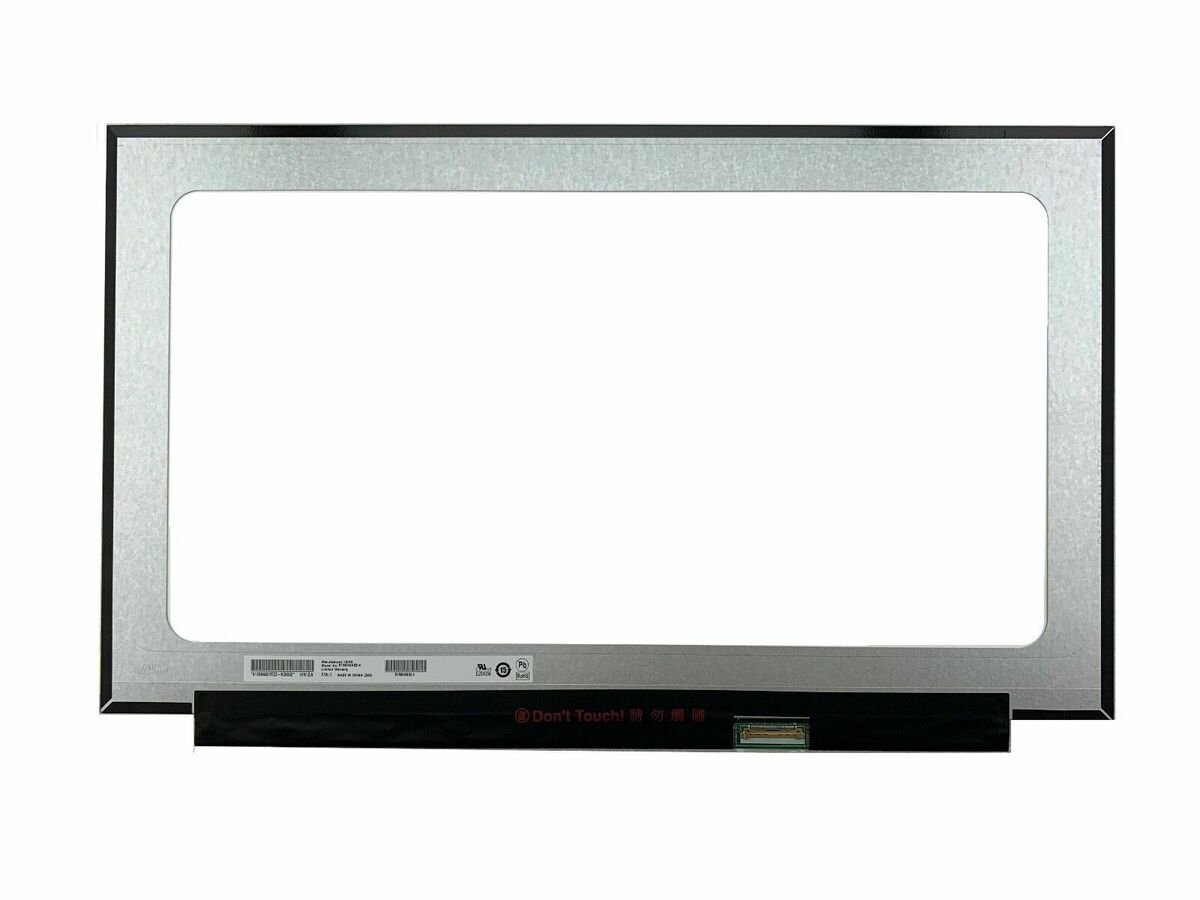
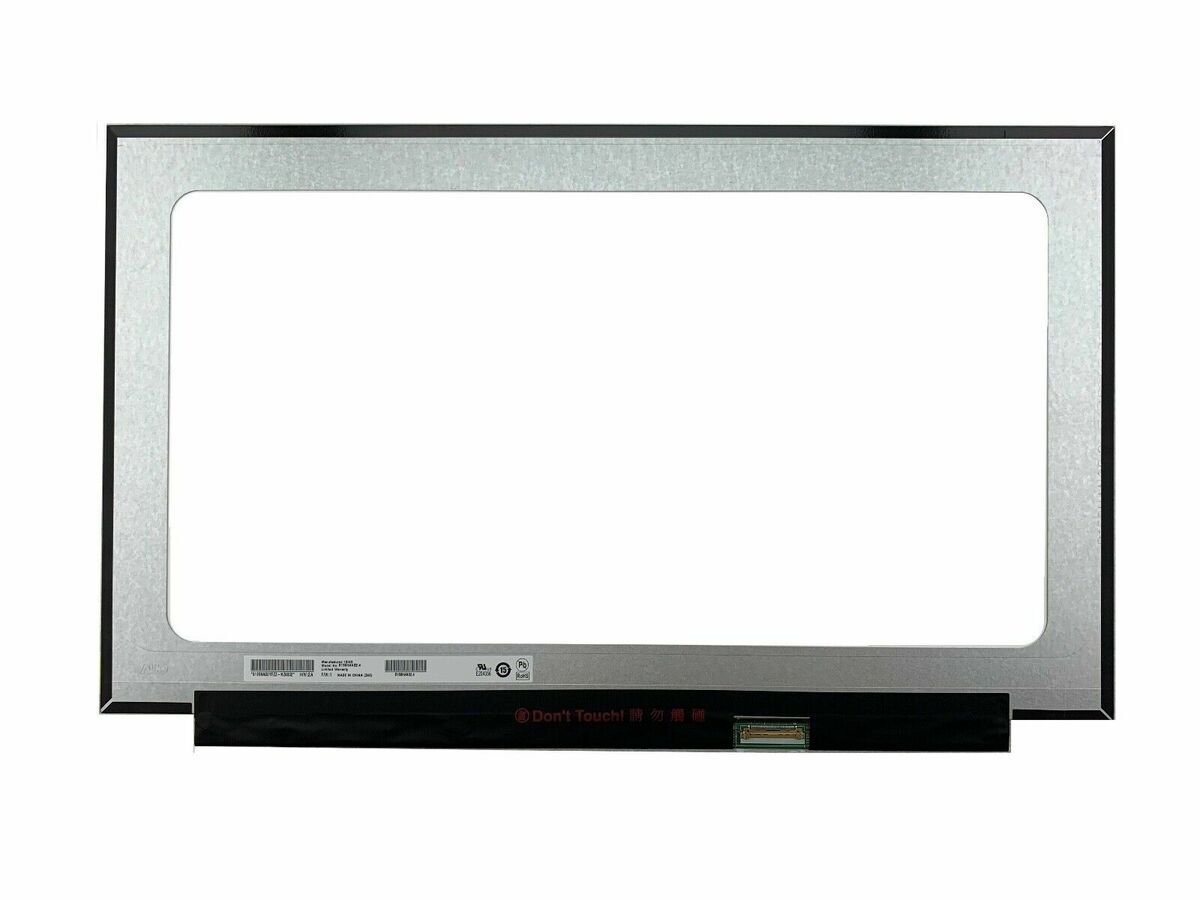
If the display on your HP ProBook 650 G5 is cracked, flickering, showing lines, discolored, dim, or completely blank, a screen replacement is often the best solution. This guide explains what screen you need, how to replace it, tools required, and important tips to help you complete the repair safely and correctly.
You may need a new screen if your laptop shows:
Cracks or physical damage to the display
Vertical or horizontal lines on the screen
Flickering or unstable image
Black or blank screen with power on
Dead pixels or color distortion
Dim or uneven brightness
These issues usually indicate damage to the LCD panel, backlight, or display connections, which cannot be fixed and require replacement.
The HP ProBook 650 G5 typically uses a 15.6-inch LED backlit LCD panel. Replacement screens come in different resolutions depending on the original configuration:
✔ 15.6″ HD (1366 × 768) LED Replacement Screen – Standard resolution
✔ 15.6″ Full HD (1920 × 1080) LED Replacement Screen – Higher clarity
✔ 15.6″ Full HD Touchscreen (if originally equipped) – If your model has touch support
⚠ Important: Always verify your current screen’s resolution and whether it is a touchscreen before ordering a replacement panel. Choosing the wrong type can result in incompatibility.
Before starting the repair, prepare:
Small Phillips screwdriver
Plastic pry tool / spudger
Tweezers
Anti-static wrist strap (optional)
Clean microfiber cloth
No soldering is required — screens attach using screws and ribbon cables.
⚠ Safety First: Shut down the laptop, unplug the power adapter, and remove the battery (if removable) before beginning the replacement.
Turn off the laptop completely.
Unplug the power adapter.
Remove the battery (if possible).
Use a plastic pry tool to carefully release the clips holding the front bezel (plastic frame) around the screen.
Work slowly around the edges to avoid cracking the plastic.
Once the bezel is removed, locate the screws securing the screen to the metal brackets on both sides.
Carefully remove these screws.
Tilt the screen forward gently.
Locate the display video cable on the back of the panel.
Disconnect it carefully — pull from the connector, not from the cable.
Position the replacement panel in the same orientation as the original.
Reconnect the display cable securely to the back of the new screen.
Replace the mounting screws.
Snap the display bezel back into position, ensuring all clips lock correctly.
Reinstall the battery (if removed) and reconnect power.
Turn on the laptop and confirm the new screen functions properly. Test brightness, colors, angles, and overall display quality.
Before purchasing a replacement screen for your ProBook 650 G5:
✔ Confirm the screen size (15.6 inches)
✔ Verify the resolution (1366 × 768 or 1920 × 1080)
✔ Confirm whether your original panel is touchscreen or non-touch
✔ Confirm the backlight type (LED)
✔ Check the connector type and mounting points
Get the HP probook 650 g5 service from Lansotech Solutions now!
No account yet?
Create an Account











 ASUS
ASUS



