




 Laptop Computers
 Desktop Computers
 Printers

 Network
 Software
 Laptop Accessories
 Laptop Components
 Office
 Desktop peripherals
 Server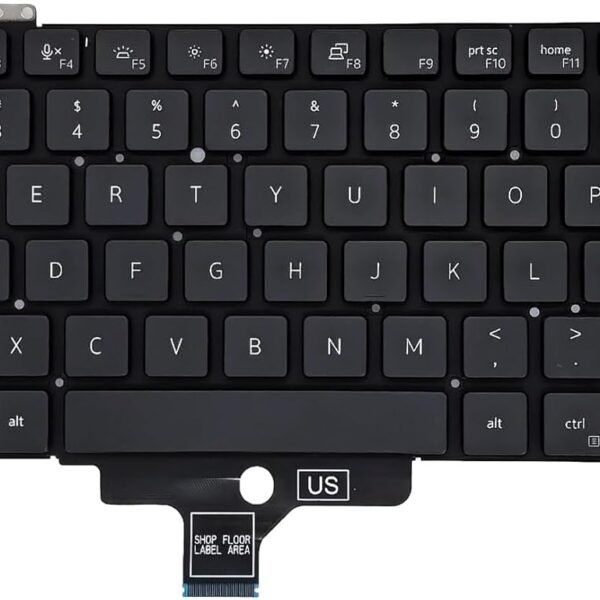

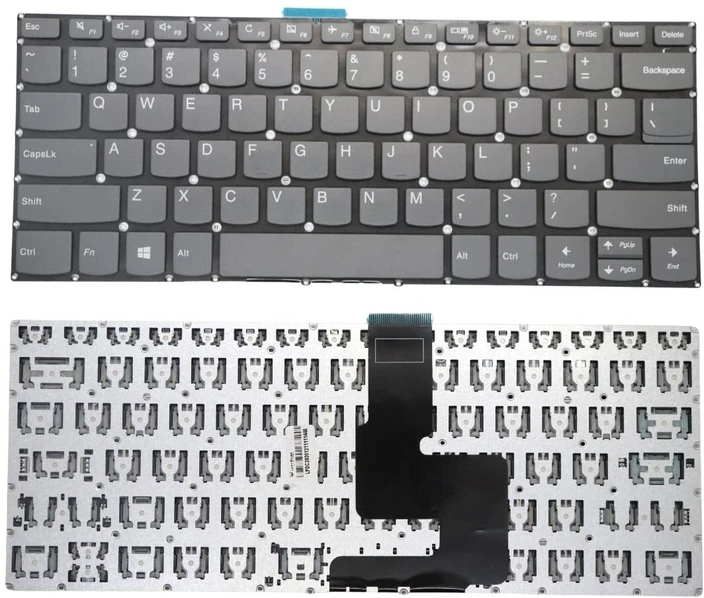
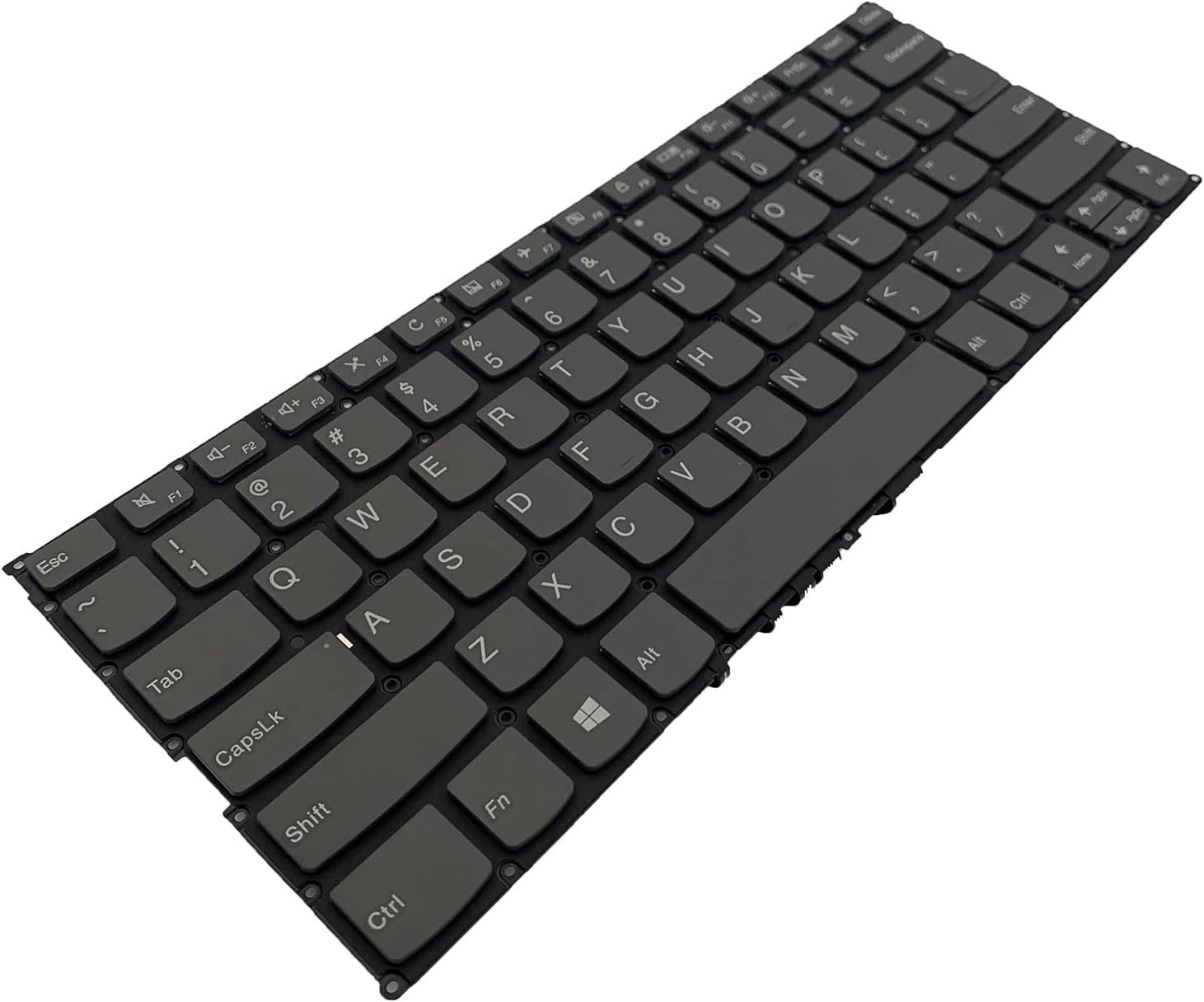
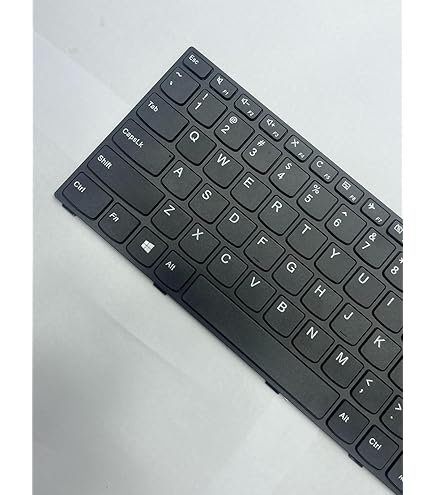
The Lenovo IdeaPad S540‑14 keyboard is a genuine OEM assembly designed specifically for the slim S540 chassis:
Layout: 6‑row chiclet style with ergonomic keycap design.
Key Travel: Approximately 1.3 mm, optimized for thin‑and‑light construction.
Connection: FFC cable with gold‑plated contacts and ZIF locking system.
Mounting: Integrated into top cover with rivets or screws.
Durability: Spill‑resistant layer and robust scissor mechanism for extended life.
Replacing with this genuine part ensures original tactile feedback, durability, and perfect fit for your Lenovo IdeaPad S540‑14.

Hurry and get discounts on all Apple devices up to 20%
Sale_coupon_15
KSh4,700.00 excl. VAT
Payment Methods:

At Lansotech Solutions, we specialize in Lenovo IdeaPad S540‑14 keyboard replacement with precision and genuine parts. As the leading laptop sellers and certified service experts in Nairobi, we perform every keyboard replacement following Lenovo’s official hardware maintenance procedures to restore your device to original condition.
The Lenovo IdeaPad S540‑14 is an ultra‑slim 14‑inch notebook with a unibody design. The keyboard is integrated into the top case and requires careful disassembly for replacement.
Keyboard Type: Full‑size island‑style (chiclet) with 6‑row layout.
Interface: Flat Flexible Cable (FFC) with ZIF connector to the motherboard.
Mounting Method: Riveted or secured with heat‑stakes into the palm rest assembly.
Special Features: Spill‑resistant layers, ultra‑low‑profile keycaps for slim chassis.
Precision Phillips screwdrivers (#0 and #00)
Torx T5 screwdriver for bottom cover
Plastic pry tools to avoid cosmetic damage
Tweezers for ribbon cable handling
Anti‑static wrist strap and mat
OEM Lenovo IdeaPad S540‑14 keyboard (check your FRU: commonly 5N20W67783 for non‑backlit or region‑specific equivalents)
Shut down the laptop completely.
Disconnect the AC adapter and all external devices.
Press and hold the power button for at least 10 seconds to discharge residual current.
Turn the laptop upside down and remove all Torx T5 screws securing the bottom cover.
Use a plastic prying tool to release the retaining clips along the perimeter.
Lift off the base cover gently.
Locate the battery connector on the motherboard and unplug it to prevent any electrical short.
Unlike older ThinkPads, the S540‑14 keyboard is part of the upper case assembly.
Remove components obstructing access, such as the system board screws or cables crossing over the keyboard frame.
Some models require complete removal of the motherboard, speakers, and daughterboards to free the keyboard frame.
From the inside of the palm rest, release the rivets or screws that hold the keyboard in place.
Carefully separate the keyboard from the top case.
Detach the FFC ribbon cable from the ZIF connector on the motherboard.
Position the new Lenovo IdeaPad S540‑14 keyboard in the top case frame.
Re‑secure using screws or replacement heat‑stakes as per Lenovo’s hardware maintenance manual.
Reconnect the FFC ribbon cable securely and close the ZIF lock.
Reinstall the system board, speakers, and any brackets removed earlier.
Reconnect the internal battery.
Replace the bottom cover and tighten all screws.
Power on the device.
Test all keys, function keys, and if applicable, the keyboard backlight.
Run a keyboard diagnostic to ensure no dead keys or misalignments.
After every replacement, our technicians perform:
Full key matrix tests to verify every key’s response.
Structural alignment checks to ensure the keyboard sits flush with the palm rest.
Firmware diagnostics to confirm keyboard recognition.
Genuine Lenovo spare parts with warranty for lasting performance.
Certified technicians trained on the IdeaPad series hardware.
Fast service turnaround—most replacements done within the same day.
Comprehensive support for related repairs like screen, battery, or hinge servicing.
No account yet?
Create an Account











 ASUS
ASUS



