





 Laptop Computers
 Desktop Computers
 Printers

 Network
 Software
 Laptop Accessories
 Laptop Components
 Office
 Desktop peripherals
 Server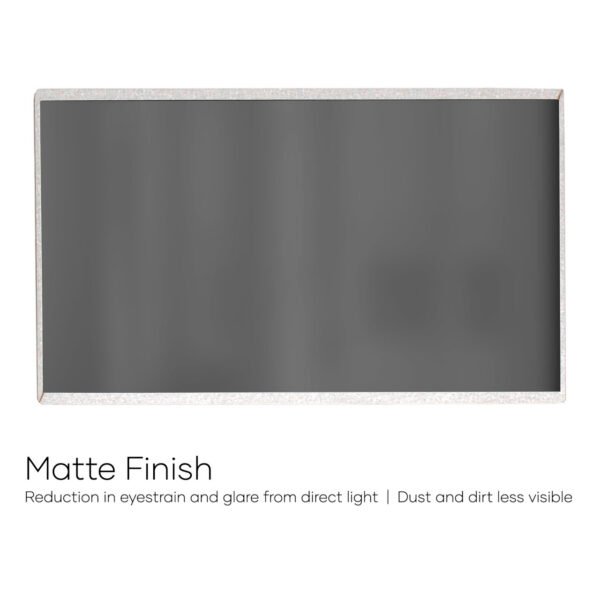
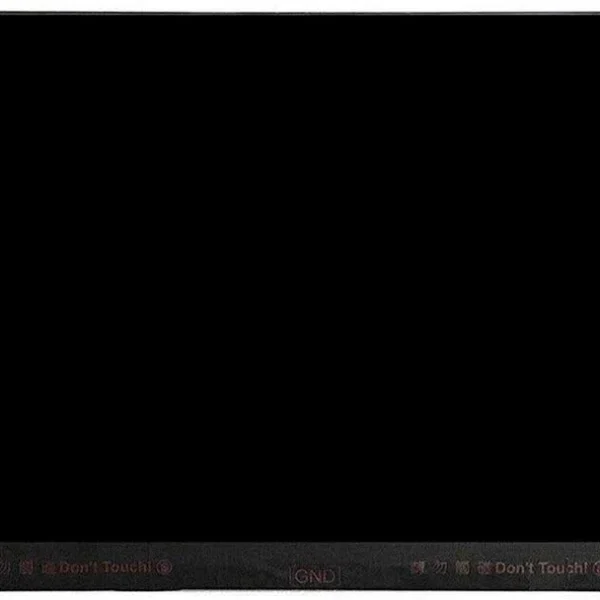

Hurry and get discounts on all Apple devices up to 20%
Sale_coupon_15
KSh6,000.00 excl. VAT
Payment Methods:

If you’re a technician working at Lansotech Solutions or just a user in Nairobi with a damaged HP EliteBook 745 G2, you’ve come to the right place. The 745 G2 is a solid business-class laptop, but like any machine, its screen is vulnerable. Whether it cracked, flickers, or stopped working altogether, replacing the screen is often the most cost-effective fix. In this guide, I’ll walk you through how to replace it safely, what type of screens are compatible, and why doing it with a professional makes a big difference.
Even with careful use, laptop screens can fail. The common culprits include:
Accidental drops or impact
Excess pressure when carrying the laptop in a bag
Wear and tear over time (hinge stress)
Faulty internal cable or connector
Backlight failure
Understanding these causes helps you decide whether to repair or just live with minor quirks.
This is the clearest sign — visible cracks, shattered glass or dents on the panel.
If your display sometimes flickers, shows horizontal or vertical lines, or goes in and out, the panel or its cable might be compromised.
The laptop powers on (you hear the fan or see lights), but no image appears — a strong sign your screen may need replacing.
When the screen is too dim or the colours look faded, the backlight or the panel itself could be failing.
According to the device’s specs, the 745 G2 supports:
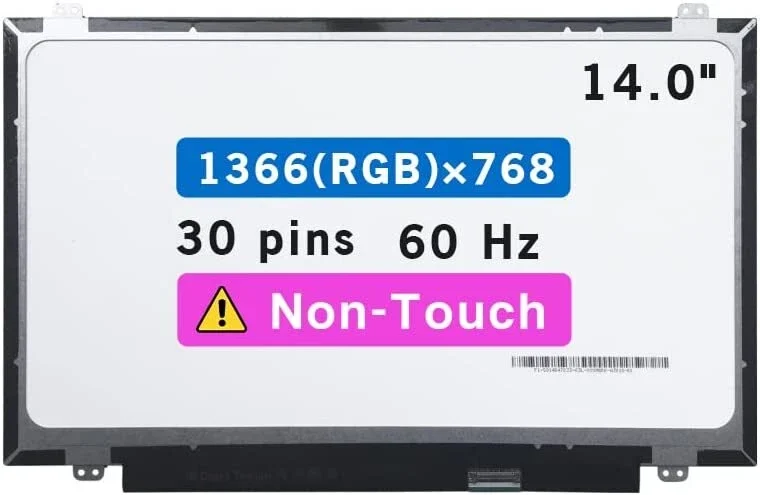
1366 × 768 (HD)
1600 × 900 (HD+)
1920 × 1080 (FHD) for some models
Choosing a higher resolution like FHD gives you sharper images and more workspace, but the price is often higher.
The HP EliteBook 745 G2 uses an eDP interface, commonly with a 30-pin connector for its screens.
Matching the connector type is critical — the wrong connector means the screen won’t work.
Matte screens reduce glare and are great in bright rooms or under sunlight.
Glossy screens show deeper colours and sharper contrast, but reflect more.
TN (Twisted Nematic) panels are generally cheaper but have narrower viewing angles.
IPS (In-Plane Switching) panels cost more but offer better colour accuracy and wider viewing angles. According to LaptopScreen.com, IPS is available for the 745 G2.
Based on the HP quick spec sheet:
14.0″ diagonal display
Brightness: ~200 nits for some models
Interface: eDP 1.2, single lane
These specs help you choose a compatible replacement screen.
To safely replace the screen, you should have:
Small Phillips screwdriver
Plastic pry tools (to separate bezels safely)
Tweezers (for delicate cable handling)
Anti-static wrist strap (optional but safer)
A compatible replacement screen
Completely shut down your EliteBook 745 G2, unplug any charger, and remove the battery if possible. This helps avoid short circuits.
Using a plastic pry tool, gently work around the edges of the bezel to unclip it. Take your time — forcing it may crack it.
Once the bezel is off, locate the eDP cable at the back of the screen. Carefully detach it without pulling too hard.
Unscrew the four hinge screws (two on each side), then tilt the panel forward, freeing it from the laptop.
Align the new screen with the hinge brackets, screw it in place, then reconnect the eDP cable firmly but gently.
Snap back the bezel, reconnect the battery and power, then turn on the laptop to test the display. Make sure there’s no flicker, distortion or dead pixels.
If you pick a screen with the wrong resolution, connector, or pin count, it may not work or may perform poorly.
The eDP cable is delicate. Pulling too hard or bending sharply can damage it, leading to display issues.
Screws that are too tight can crack the new screen or misalign the hinges.
A trained technician handles delicate parts much better and reduces the risk of damaging the motherboard or screen.
Repair shops can source compatible, high-quality replacement screens that work reliably.
Professionals often offer warranties on parts and labour, giving you peace of mind.
Skilled Technicians: We have experience working on HP EliteBooks, including the 745 G2.
Quality Replacement Screens: We source compatible and genuine-grade screens.
Competitive Pricing: We offer fair rates on both parts and labour.
Fast Turnaround: Most screen replacements can be done within a short time.
A skilled technician (like at Lansotech Solutions) typically takes 20 to 40 minutes to replace the screen, test it, and reassemble your laptop.
Use a padded or well-cushioned laptop bag
Avoid placing heavy objects on top of your laptop
Open and close the lid gently using both hands
Keep liquids away while working
Clean the screen gently with a microfiber cloth
Replacing the screen on your HP EliteBook 745 G2 doesn’t have to be stressful — with the right parts, tools, and expertise, it can be a smooth process. Whether you go for a budget HD panel or upgrade to FHD IPS, doing the job properly restores your laptop’s usability and look.
At Lansotech Solutions, we provide reliable, expert screen replacement services in Nairobi — from sourcing the right model to installing it safely and testing thoroughly. If your screen is cracked, flickering, or not working at all, come to us, and we’ll bring your EliteBook back to life.
No account yet?
Create an Account











 ASUS
ASUS



