




 Laptop Computers
 Desktop Computers
 Printers
 Network
 Software
 Laptop Accessories
 Laptop Components
 Office
 Desktop peripherals
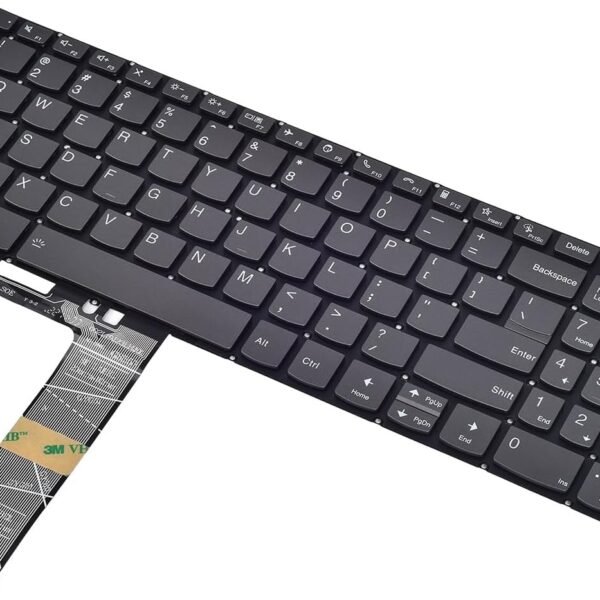
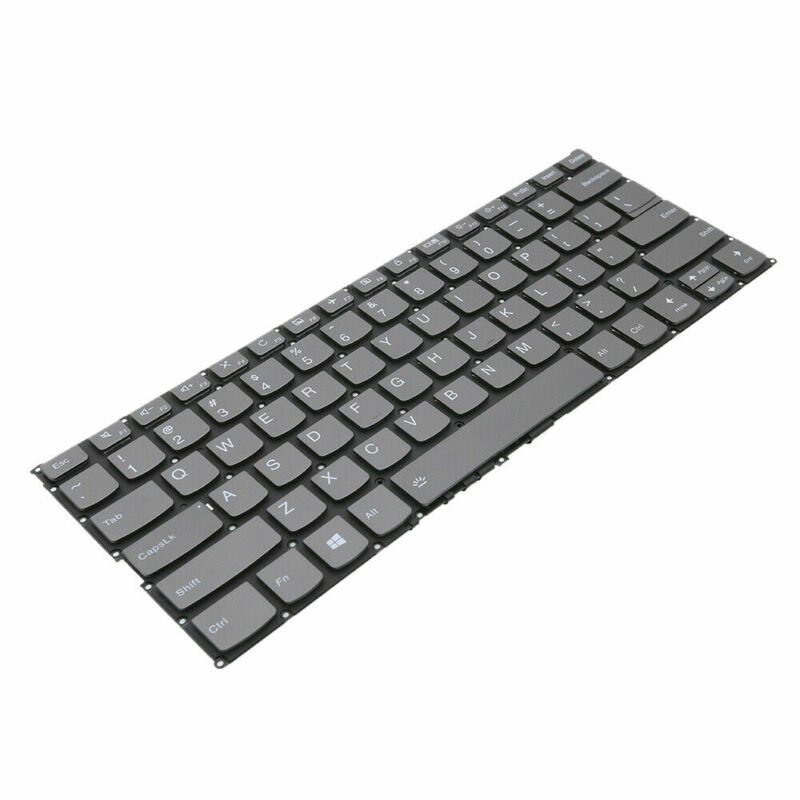
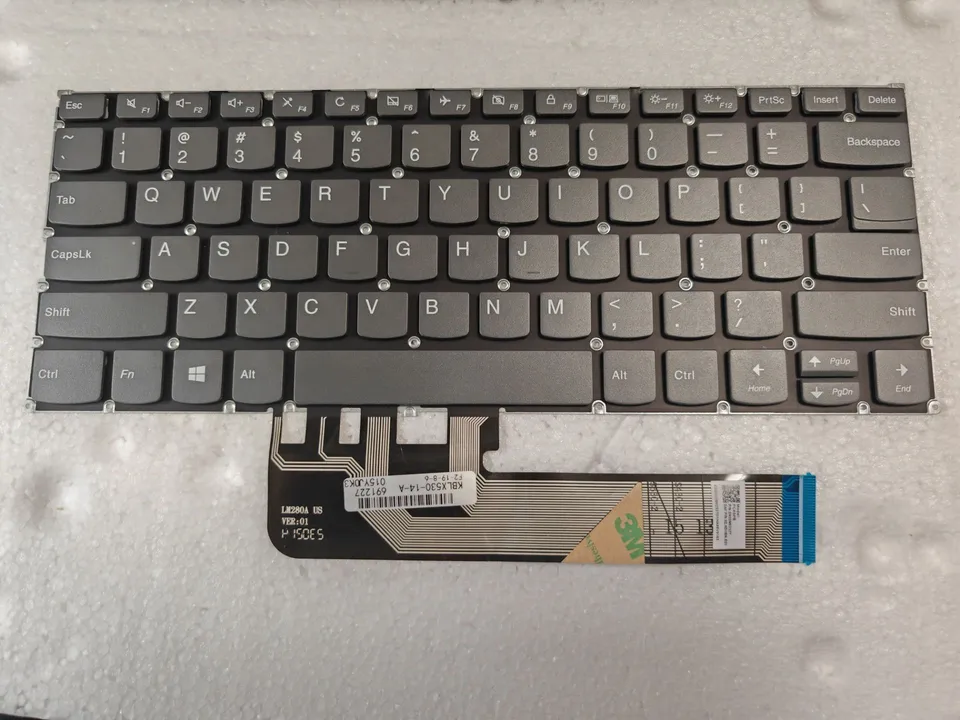
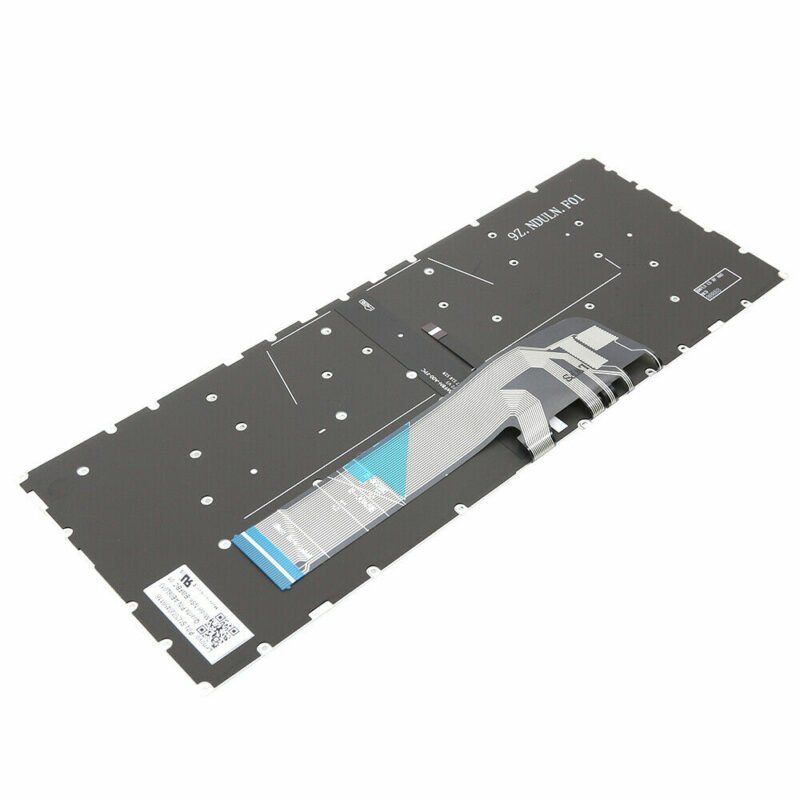
The Lenovo Yoga 730‑13IKB replacement keyboard is a field‑replaceable OEM component designed specifically for the 13.3″ convertible Yoga 730 chassis.
Type: Full‑size, chiclet keyboard
Travel Distance: Ultra‑low profile with 1.3 mm key travel
Connectivity: Integrated FFC with gold‑plated contacts for signal integrity
Compatibility: FRU 5N20R63965 / 5N20R63966 (region dependent)
Features: Spill‑resistant membrane layers, precision molded keycaps, energy‑efficient white LED illumination
This keyboard offers durability, precision, and a seamless typing experience, fully restoring your Yoga 730‑13IKB to its original functionality.

Hurry and get discounts on all Apple devices up to 20%
Sale_coupon_15
KSh2,800.00 excl. VAT
Payment Methods:

At Lansotech Solutions, we specialize in Lenovo Yoga 730‑13IKB keyboard replacement services. As one of the most trusted laptop repair and sales experts in Nairobi, we ensure that every replacement is performed with genuine Lenovo parts and with strict adherence to technical standards. Below is a complete technical description and step‑by‑step guide.
The Yoga 730‑13IKB is an ultrabook with a slim unibody aluminum chassis. The keyboard is a low‑profile backlit chiclet keyboard integrated into the upper case assembly.
Key specifications include:
Keyboard Layout: 6‑row island-style with function keys and integrated power key.
Interface: Flexible flat ribbon cable (FFC) with ZIF (Zero Insertion Force) connector.
Mounting: Secured via internal screws and plastic retention clips under the palm rest.
Form Factor: Ultra‑thin to fit the 13.3″ Yoga convertible chassis.
Performing a replacement requires specialized tools to avoid chassis or board damage:
Precision screwdriver set (Torx T4/T5 and Phillips #00)
Plastic opening tools and spudgers
ESD protection kit (wrist strap and mat)
Tweezers for ZIF connector handling
Magnetic tray for screw management
Original Lenovo Yoga 730‑13IKB keyboard FRU (commonly FRU: 5N20R63965 or equivalent region-specific part)
Shut down the laptop, unplug the AC adapter, and remove all peripherals.
Hold the power button for 10 seconds to drain residual charge.
Using a Torx T5 driver, remove all screws on the underside of the device.
Insert a plastic pry tool between the base and the top case to release clips without scratching the aluminum surface.
Locate the battery connector on the motherboard and detach it carefully.
This step is critical to avoid short circuits during disassembly.
The Yoga 730‑13IKB’s keyboard is part of the upper chassis assembly.
Remove additional screws securing the mainboard, speakers, and other components that overlay the keyboard mount points.
Carefully lift and reposition the motherboard if necessary, ensuring the FFCs are not strained.
From the underside of the palm rest, locate and remove the screws marked with a keyboard icon.
Release any plastic retention tabs and gently lift the keyboard out, disconnecting the FFC from its ZIF connector.
Align the new OEM Lenovo keyboard into position.
Secure it with the designated screws and engage all retention clips.
Reconnect the FFC into the ZIF connector, locking the latch to ensure a secure connection.
Reposition the motherboard, speakers, and brackets.
Reconnect all ribbon cables, reattach the battery connector, and close the bottom cover with its Torx screws.
Power on the laptop and run a full keyboard diagnostic:
Verify all keys register correctly.
Test both levels of backlight brightness.
Check function keys (volume, brightness, etc.) for responsiveness.
Our team at Lansotech Solutions always performs:
BIOS input verification to ensure the keyboard is recognized.
Full key matrix scan to detect any dead keys.
Structural inspection to confirm proper fit with no warping or loose parts.
Genuine Lenovo spare parts with warranty.
Certified technicians trained on Yoga series ultrabooks.
Fast turnaround service with same‑day availability in many cases.
Comprehensive support for related issues such as hinge, battery, or display repairs.

 Laptop Computers
 Desktop Computers
 Desktop peripherals
 Laptop Accessories
 Laptop Components
 Network
 Printers
 Server
 Software
No account yet?
Create an Account






