




 Laptop Computers
 Desktop Computers
 Printers
 Network
 Software
 Laptop Accessories
 Laptop Components
 Office
 Desktop peripherals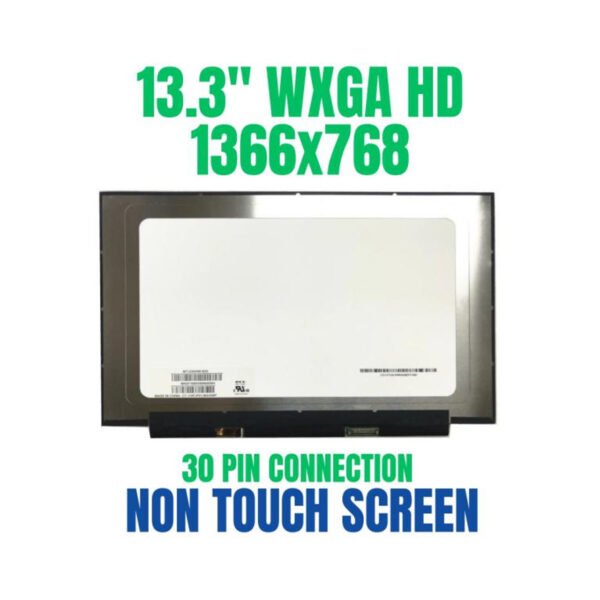

Hurry and get discounts on all Apple devices up to 20%
Sale_coupon_15
KSh8,000.00 excl. VAT
Payment Methods:

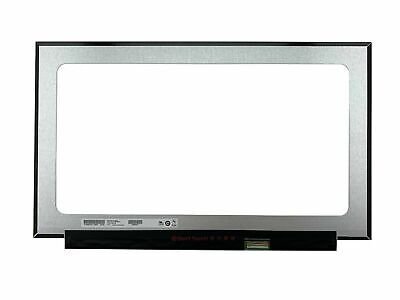
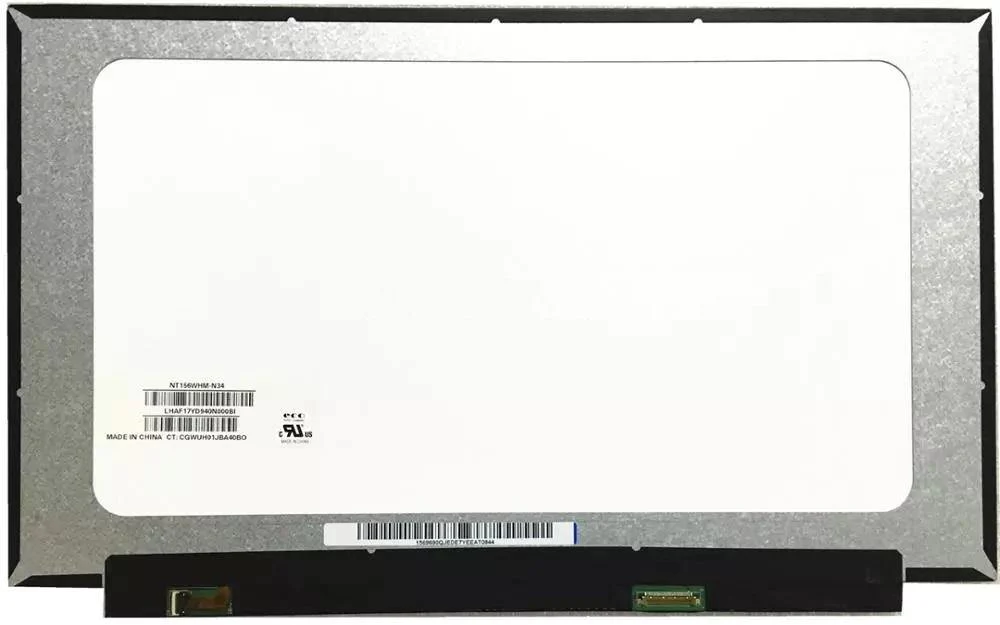
If your HP 15-dw1083wm laptop has a cracked, flickering, dim, or blank display, a screen replacement can bring your device back to full working condition. A damaged laptop screen affects productivity, usability, and overall experience — replacing it restores clear visuals and reliable performance.
This guide explains what you need to know about the HP 15-dw1083wm screen replacement process, compatible parts, and how to ensure the best results for your laptop.
You might need a new screen if you notice:
Cracked or shattered glass
Black or blank display when the laptop is on
Horizontal or vertical lines
Flickering or unstable image
Dim or uneven brightness
Discolored patches or dead pixels
If the laptop powers on but doesn’t show a proper image on the screen — yet works with an external monitor — the internal display panel is likely the issue.
The HP 15-dw1083wm commonly uses:
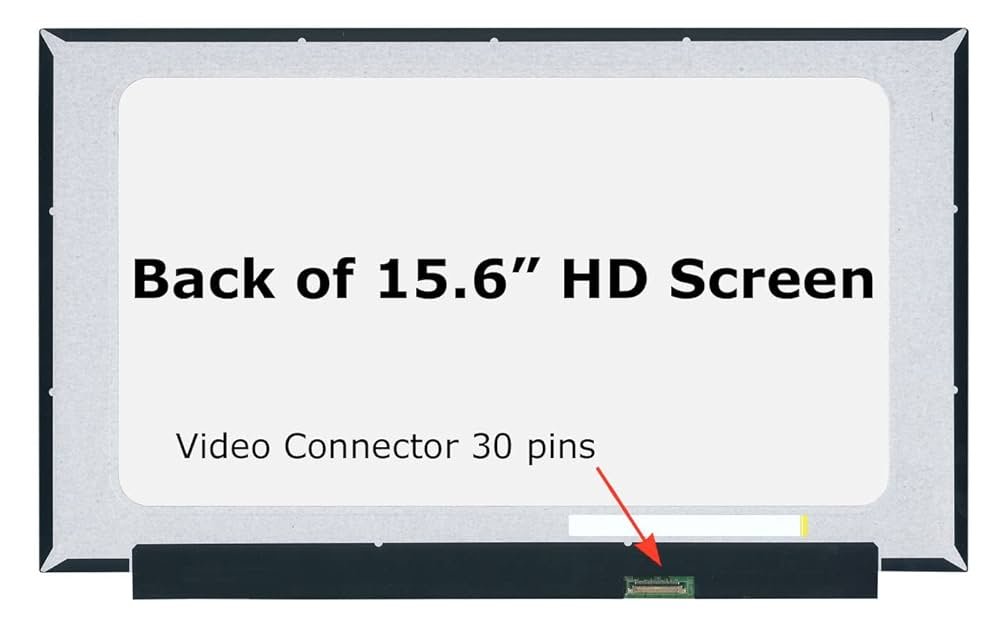
15.6-inch LED LCD panel
HD (1366 × 768) or Full HD (1920 × 1080) resolution
Standard LCD connector (30-pin or 40-pin, depending on panel type)
Glossy or anti-glare finish
Before selecting a replacement screen, it’s crucial to check:
Screen size (15.6 inches)
Panel type and connector placement
Resolution (HD or Full HD)
Using the wrong panel can result in poor image quality or compatibility issues.
To perform the replacement, gather:
Small Phillips screwdriver
Plastic pry tool / spudger
Tweezers (optional)
Clean and flat workspace
Soft cloth to protect the surface
Avoid using metal prying tools directly on the plastic bezel — they can scratch or crack it.
⚠️ Important: Turn off the laptop and disconnect the power adapter before starting.
Power off the laptop completely
Unplug the charger
Remove any external devices (USB drives, cables)
Disconnecting power ensures safety and prevents electrical damage.
Open the laptop lid fully
Gently use a plastic opening tool to pry the bezel away from the display frame
Work around all edges carefully — do not rush
The bezel clips look fragile and can break if forced.
Once the bezel is off, locate the mounting screws for the LCD panel
Unscrew them one by one
Slowly tilt the panel forward
Carefully disconnect the display cable from the back
Handle the cable gently; it’s delicate and easily damaged.
Align the replacement display panel
Securely plug the display cable into the new screen
Ensure the connection is firm and not misaligned
Do not force the cable — it should slide in smoothly but securely.
Screw the new panel back into the frame
Press the bezel back into place around the edges
Ensure all clips snap in without gaps
Proper alignment prevents dust and debris from entering the display area.
Plug in the charger
Power on the laptop
Confirm that the display is clear and functioning properly
If the image appears sharp and at correct brightness, the installation was successful.
At Lansotech Solutions, we offer:
Genuine, high-quality replacement screens
Professional installation by trained technicians
Compatibility testing and calibration
Fast turnaround time, often same-day service
Warranty on parts and workmanship
Professional installation minimizes risk and ensures the replacement is done right the first time.
Once you have a new screen:
Avoid applying pressure to the screen surface
Clean with a soft, dry microfiber cloth
Keep liquids and debris away from the display area
If flickering or color issues persist, return for inspection
A: A professional technician typically completes the screen replacement in about 30–60 minutes.
A: No — screen replacement does not affect your data. It’s a hardware repair. However, it’s always good practice to back up important files before any repair.
A: Only if the damage is due to a manufacturing defect and covered under HP’s warranty. Physical or accidental damage usually requires paid repair.
Get the HP 15 dw1083wm service from Lansotech Solutions now!
 Laptop Computers
 Desktop Computers
 Desktop peripherals
 Laptop Accessories
 Laptop Components
 Network
 Printers
 Server
 Software
No account yet?
Create an Account






