


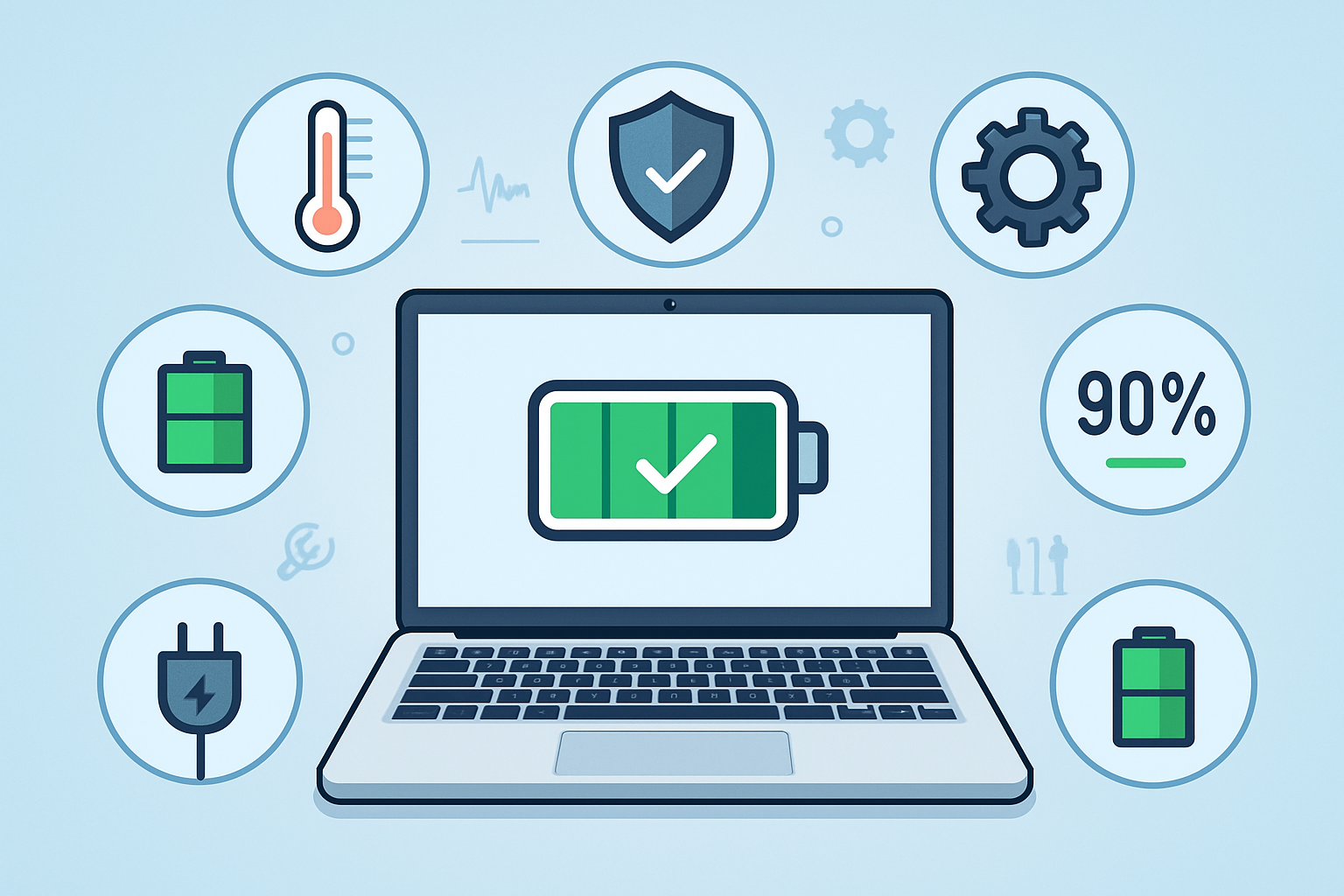
Your laptop battery doesn’t just “die overnight”—it’s usually worn down by heat, charging habits, age, and how heavily you use it. Below is a clear, practical guide to what harms your battery the most and how to keep it healthy longer.
1. What Kills a Laptop Battery Fastest?
1.1 Heat and Overheating
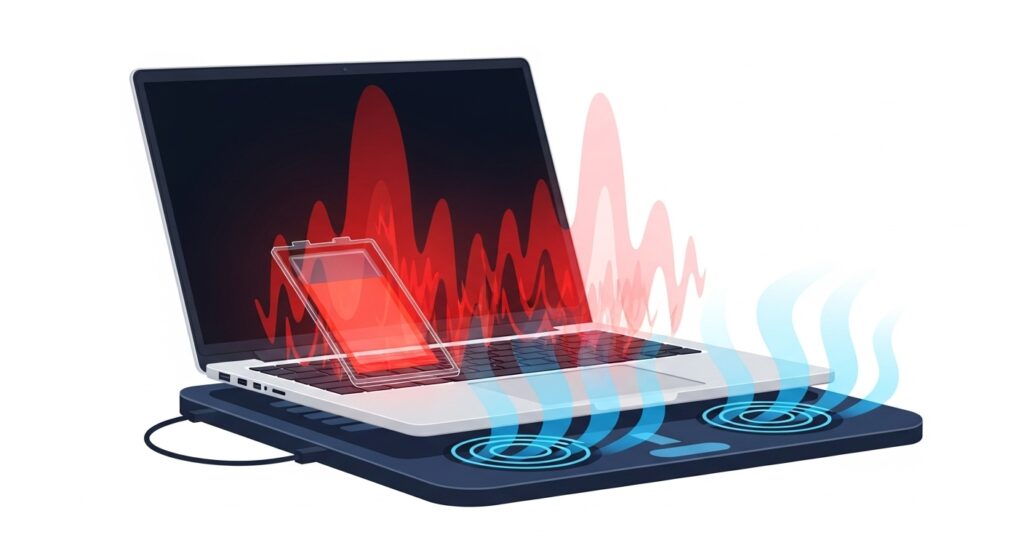
- High temperatures (from gaming, video editing, blocked vents, or hot environments) can accelerate lithium‑ion degradation.
- An overheating laptop may also throttle performance or shut down even if the battery “looks” charged.
1.2 Charging from 0% to 100% Too Often
Many experts say deep discharges shorten usable battery cycles over time.
Frequently draining to 0% and then charging to 100% stresses the cells more than keeping the charge between roughly 30–80% for daily use.
1.3 Constantly Plugged In at 100%
- Leaving the laptop plugged in 24/7 can keep the battery sitting at full voltage, which slowly ages the cells.
- Some laptops handle this better thanks to battery‑saver modes that cap charge at 80–90%, but others still suffer.
1.4 Physical and Environmental Damage
- Swelling batteries, drops, or water exposure can ruin the battery instantly and become a safety hazard.
- Humid or very hot environments (car dashboards, direct sun, tropical rooms) speed up chemical wear inside the battery.
1.5 Software and Driver Issues
Some “power‑saving” features (like fast startup or aggressive sleep modes) can also affect charge behavior over time.
Outdated BIOS, battery drivers, or power‑plan bugs can make the system misreport capacity or cause the laptop to shut down unexpectedly at a higher percentage.
2. How to Check Your Battery Health
On Windows:
- Run Command Prompt as admin and type:
powercfg /batteryreport
Then open the generatedbattery‑report.htmlto see:- Design capacity vs. full charge capacity
- Cycle count and estimated runtime
On macOS:
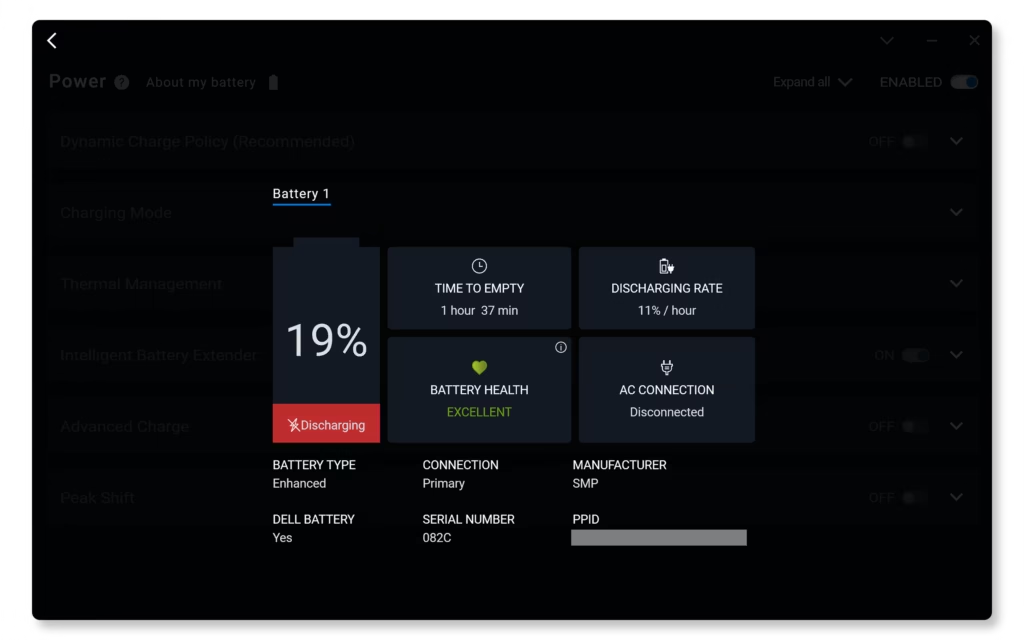
- Click the battery icon in the menu bar (or hold Option while clicking) to see “Condition” (Normal, Replace Soon, Replace Now).
- Use System Information → Power for detailed health info.
A big drop in full‑charge capacity compared with design capacity usually means the battery is aging and should be monitored or replaced.
3. Signs Your Laptop Battery is Failing
- Holds charge for much less time than it used to (e.g., from 5 hours to 1–2 hours).
- Shuts down suddenly at 20–30% instead of tapering down.
- Takes longer to charge or won’t charge at all.
- Battery swells or bulges, which is a safety red flag.
If you see these signs, plan for a battery replacement, especially if the laptop is 2–3+ years old.
4. When to Replace Your Laptop Battery
Typical lithium‑ion laptop batteries last roughly 2–4 years or 300–500 charge cycles, depending on use. Replace it if:
- Runtime drops below useful levels for your workflow.
- The battery swells, smells strange, or shows physical damage.
- The system reports “Replace Now” or capacity is under 60–70% of original.
5. How to Protect Your Laptop Battery (Daily Habits)
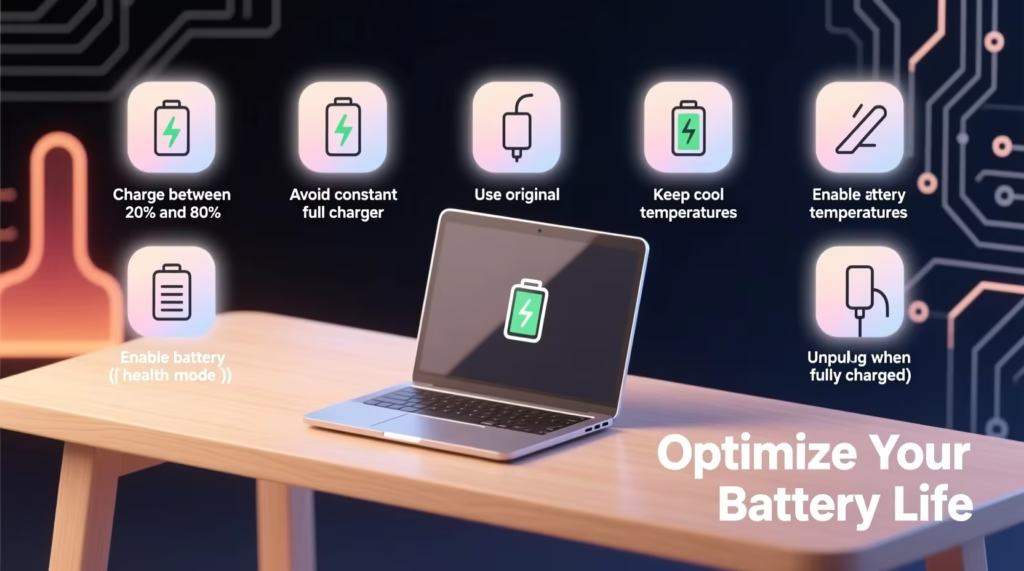
Use this checklist to keep your battery healthy:
Run occasional antivirus scans; malware can keep the CPU busy and drain the battery unnaturally fast.
Avoid extreme heat
Don’t leave the laptop in a hot car or direct sunlight.
Keep vents clear and use a cooling pad if you game or edit videos often.
Optimize charge levels
For regular use, keep the battery around 40–80% if possible.
Avoid going to 0% unless you must.
Don’t stress‑charge or overload
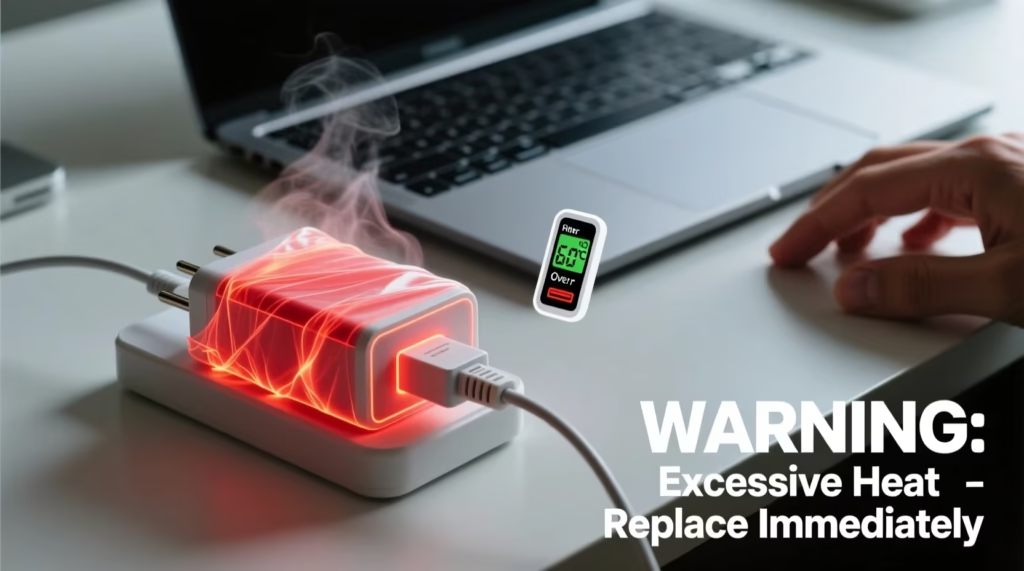
Use the original or reputable charger; cheap chargers can overcharge or damage the battery.
If you’re mostly plugged in, see if your laptop has a battery‑saver setting that limits max charge (e.g., “80% mode” on some Lenovo/HP/Dell models).
Reduce unnecessary load
Lower screen brightness.
Close heavy apps and background programs when on battery so the CPU doesn’t overwork.
Update and clean up
Keep BIOS, drivers, and OS updated to avoid power‑saver bugs.
Quick Summary: What to Do Today
- Don’t abuse heat or deep discharges; keep the laptop cool and the charge in the middle band.
- Check battery health periodically using
powercfg /batteryreport(Windows) or Battery Condition (macOS). - Update firmware/drivers and avoid sketchy chargers.
- Plan for a replacement around years 2–4, especially if you use the laptop heavily.
If you tell me your laptop model and OS (e.g., “Dell Inspiron 15, Windows 11” or “MacBook Air 2020”), I can give you model‑specific steps to check and protect its battery.