









Is your laptop taking forever to boot? Do applications freeze when you open several browser tabs? Or does your computer simply feel sluggish compared to when it was new?
If you’re looking to improve your laptop’s performance, you’ve probably asked this question:
Should I upgrade my SSD or add more RAM?
The answer depends on what’s slowing your laptop down.
For many users, an SSD upgrade provides the biggest improvement in speed. However, if you frequently multitask or use memory-intensive software, adding more RAM can make a significant difference.
In this guide, we’ll compare SSD and RAM upgrades, explain how each affects performance, and help you decide which upgrade offers the best value.
Understanding the Difference
Although both SSDs and RAM improve performance, they serve different purposes.
| SSD (Solid State Drive) | RAM (Random Access Memory) |
|---|---|
| Stores Windows, software, and files | Stores data currently being used |
| Permanent storage | Temporary working memory |
| Improves boot and loading speeds | Improves multitasking |
| Retains data when powered off | Clears when the laptop is turned off |
Think of it this way:
- SSD = Your filing cabinet, where everything is stored.
- RAM = Your work desk, where you spread out the files you’re actively using.
A faster filing cabinet helps you retrieve documents quickly, while a larger desk gives you more room to work.
What Happens When You Upgrade to an SSD?
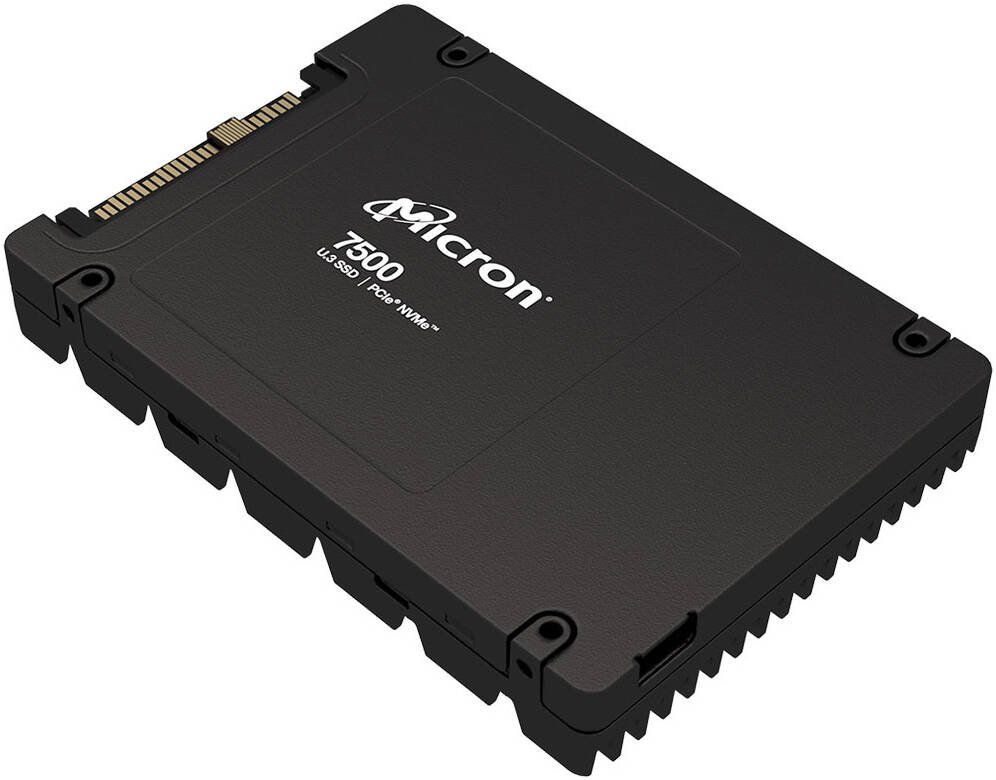
An SSD is one of the most noticeable upgrades you can make.
Benefits of an SSD Upgrade
- Faster startup times
- Quicker application launches
- Faster file transfers
- Improved overall responsiveness
- Reduced loading times
- Better reliability than traditional hard drives
- Lower power consumption
- Silent operation
If your laptop still uses a mechanical hard drive (HDD), upgrading to an SSD can make it feel like a completely different machine.
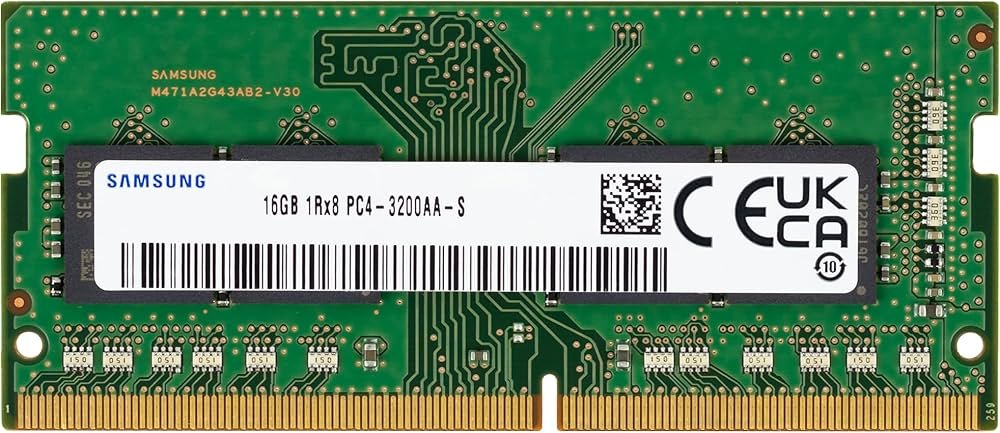
What Happens When You Upgrade Your RAM?
RAM allows your laptop to keep more programs open at the same time without slowing down.
Benefits of More RAM
- Smoother multitasking
- Better performance with many browser tabs
- Improved experience in Microsoft Office
- Faster photo and video editing
- Better performance for programming tools
- Improved virtual machine performance
Unlike an SSD, RAM won’t significantly reduce boot times, but it helps when your workload exceeds your current memory capacity.

When Should You Upgrade Your SSD?
Choose an SSD upgrade if:
- Your laptop still uses an HDD.
- Windows takes several minutes to start.
- Applications open slowly.
- File transfers are sluggish.
- Your laptop feels slow even with only a few programs open.
For most older laptops, upgrading from an HDD to an NVMe or SATA SSD provides the largest performance improvement.
ess laptops often remain excellent investments.ic waste and extends the life of quality hardware.
When Should You Upgrade Your RAM?
Upgrade your RAM if:
- Your system regularly uses more than 80% of its memory.
- You keep dozens of browser tabs open.
- You work with large spreadsheets.
- You edit videos or high-resolution photos.
- You use design, engineering, or programming software.
- Your laptop has only 4GB or 8GB of RAM.
Recommended Upgrade Path
| Current Configuration | Recommended Upgrade |
| HDD + 4GB RAM | Upgrade to SSD first, then 8GB or 16GB RAM |
| HDD + 8GB RAM | Upgrade to SSD |
| SSD + 4GB RAM | Upgrade to at least 8GB RAM |
| SSD + 8GB RAM | Upgrade to 16GB RAM if you multitask frequently |
| SSD + 16GB RAM | Upgrade only if your workload requires more memory |
Can Every Laptop Be Upgraded?
Not always.
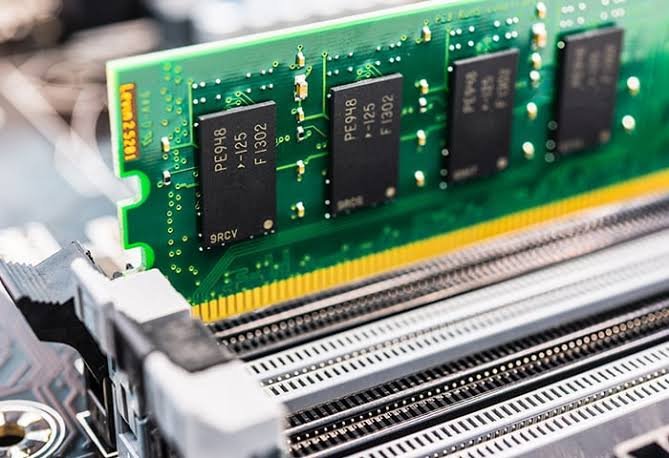
Some modern ultrabooks have soldered RAM that cannot be upgraded, while others allow upgrades to both RAM and storage.
Before purchasing components, check:
- Maximum supported RAM
- Number of RAM slots
- SSD type (SATA or NVMe)
- Available storage slots
A professional technician can help you determine your laptop’s upgrade options.
Can Every Laptop Be Upgraded?
Not always.
Some modern ultrabooks have soldered RAM that cannot be upgraded, while others allow upgrades to both RAM and storage.
Before purchasing components, check:
- Maximum supported RAM
- Number of RAM slots
- SSD type (SATA or NVMe)
- Available storage slots
A professional technician can help you determine your laptop’s upgrade options.
Final Verdict
If your laptop still has a traditional hard drive, upgrading to an SSD should be your first priority. It delivers the biggest improvement in startup time, application loading, and overall responsiveness.
If your laptop already has an SSD but struggles with multitasking, adding more RAM is likely the better investment.
For the best long-term performance, combining an NVMe SSD with 16GB of RAM gives most users the ideal balance of speed, responsiveness, and value.
At Lansotech Solutions, we provide professional SSD and RAM upgrades for Lenovo, HP, Dell, ASUS, Acer, and other leading laptop brands. Our technicians can assess your laptop, recommend the most effective upgrade, and install compatible components to maximise performance.
Contact Lansotech Solutions today:
Email: sales@lansotechsolutions.co.ke
Call/WhatsApp 0791-833-529 Start WhatsApp Chat>>