






 Laptop Computers
 Desktop Computers
 Printers
 Network
 Software
 Laptop Accessories
 Laptop Components
 Office
 Desktop peripherals

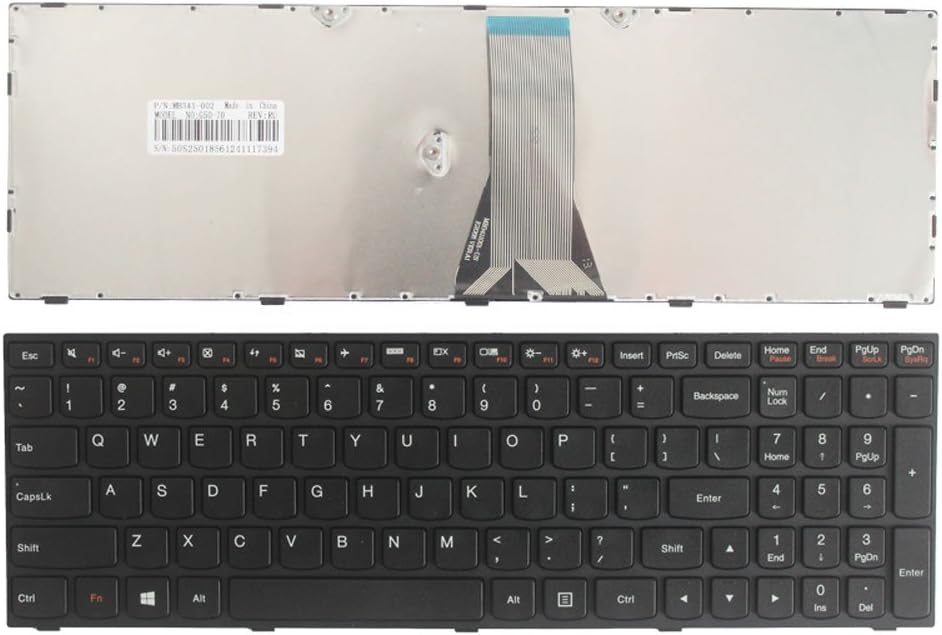
Condition: Brand new, original Lenovo OEM part
Compatibility: Lenovo IdeaPad 300‑15ISK / 300‑15IBR / 300‑17ISK
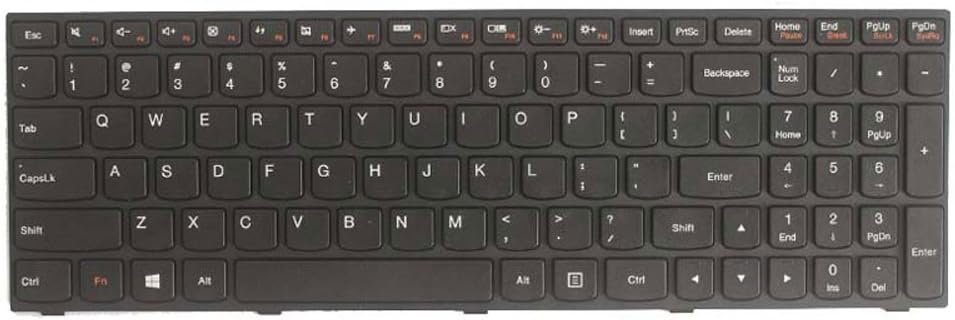
Layout: QWERTY English, full numeric keypad
Backlight: Non‑backlit
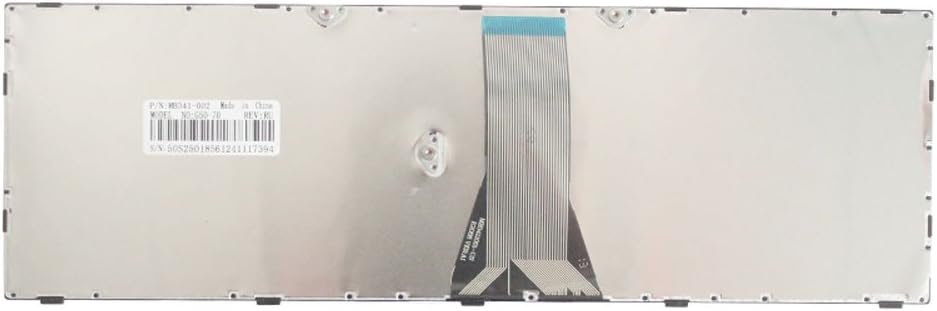
Connector: Flat ribbon cable with ZIF locking
Mounting: Integrated design within the top case, requires careful installation
Warranty: 90‑day warranty when purchased from Lansotech Solutions

Hurry and get discounts on all Apple devices up to 20%
Sale_coupon_15
KSh2,200.00 excl. VAT
Payment Methods:

At Lansotech Solutions, we supply and install genuine Lenovo keyboards with precision. We are proud to be recognized as one of the best laptop keyboard shops in Nairobi CBD, trusted for providing original parts and expert-level repairs. If your Lenovo IdeaPad 300 series keyboard has broken keys, unresponsive buttons, or physical damage, replacing it with an original unit restores your laptop’s reliability and typing comfort. Below is a detailed, technician‑focused guide.
This keyboard is fully compatible with the following Lenovo models:
Lenovo IdeaPad 300‑15ISK
Lenovo IdeaPad 300‑15IBR
Lenovo IdeaPad 300‑17ISK
All these models share similar chassis and keyboard assembly design, ensuring direct fitment.
Keyboard Layout: Full‑size chiclet-style layout with a dedicated numeric keypad (for 15‑inch and 17‑inch variants)
Key Mechanism: Durable scissor-switch low-profile keys
Travel Distance: Approximately 1.4 mm with precise tactile feedback
Backlighting: Standard variant is non-backlit
Connector Interface: Flat Flexible Cable (FFC) with ZIF (Zero Insertion Force) locking system
Mounting Method: Integrated into the top case/palmrest, held by screws and plastic rivets
Durability: Spill‑resistant membrane and full support for hotkeys and Fn shortcuts
Original Lenovo IdeaPad 300‑Series keyboard
Phillips #0/#00 screwdrivers
Torx T5 screwdriver for base screws
Plastic pry tools / spudger
Tweezers for ribbon cables
Anti‑static wrist strap to avoid ESD damage
Turn off the laptop completely and unplug the adapter.
Disconnect any peripherals and press the power button for 10 seconds to drain residual power.
Place the laptop upside down on a clean surface.
Remove all screws using a T5 screwdriver.
Use a plastic pry tool to carefully release the clips and lift the base cover.
Locate the battery connector on the motherboard and unplug it to avoid short circuits.
Identify the keyboard ribbon cable.
Gently flip up the locking flap on the ZIF connector and slide out the flat cable.
From the inside of the palmrest, remove all screws or release rivets securing the keyboard.
Push the old keyboard outward from the inside of the frame.
Align the new Lenovo IdeaPad 300 keyboard precisely in the palmrest frame.
Secure it using screws or replacement rivets.
Reconnect the ribbon cable to the motherboard and lock the ZIF connector.
Reconnect the battery.
Reattach the bottom cover and fasten all screws.
Power on your laptop and test every key, numeric pad, and Fn functions to ensure full functionality.
We stock original Lenovo replacement keyboards with warranty.
Experienced technicians guarantee safe disassembly and professional installation.
Quick turnaround and excellent customer support.
Rated among the best laptop keyboard shops in Nairobi CBD, trusted by corporate and individual clients alike.

 Laptop Computers
 Desktop Computers
 Desktop peripherals
 Laptop Accessories
 Laptop Components
 Network
 Printers
 Server
 Software
No account yet?
Create an Account






